

Website screenshots use the Modern theme. Paper is the default; choose Paper, Night or Modern in My account under Make the journal yours. Buttons and steps are the same in every theme.
Version scope: the working Warcraft integration described here is WoW: Forever. WoW: Midnight is a separate planned integration; these addon instructions do not apply to Retail, Classic or another expansion.
A Guildology Check-In is an update you choose to share with your guild. You create a code in the addon, copy it and submit it through the website or your guild’s connected Discord channel. The service reads the update, records relevant changes and decides whether a milestone deserves a trophy-room card.
This guide describes the current WoW: Forever preview. The import and journal workflows have been tested with mock data; actual Forever API behaviour, addon rendering and in-game copying still need real-client verification. Our first planned client test is 5 November 2026.
Before your first Check-In
Open My account on Guildology and use Get addon preview to download the ZIP. Install the addon in your Forever client’s Interface/AddOns folder, with Guildology.toc directly inside the Guildology folder. Enable the addon, then use /guildology to open its window.
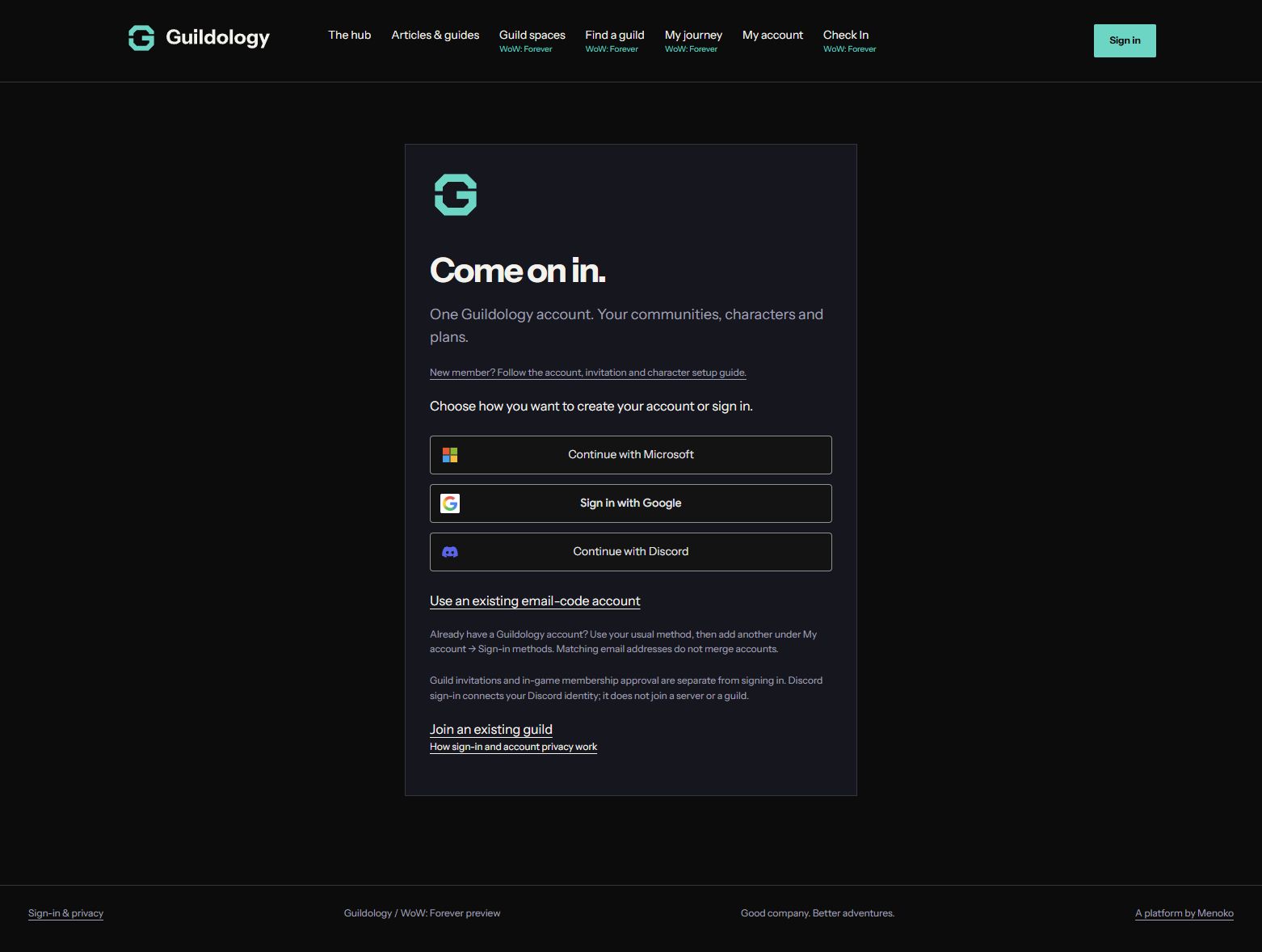
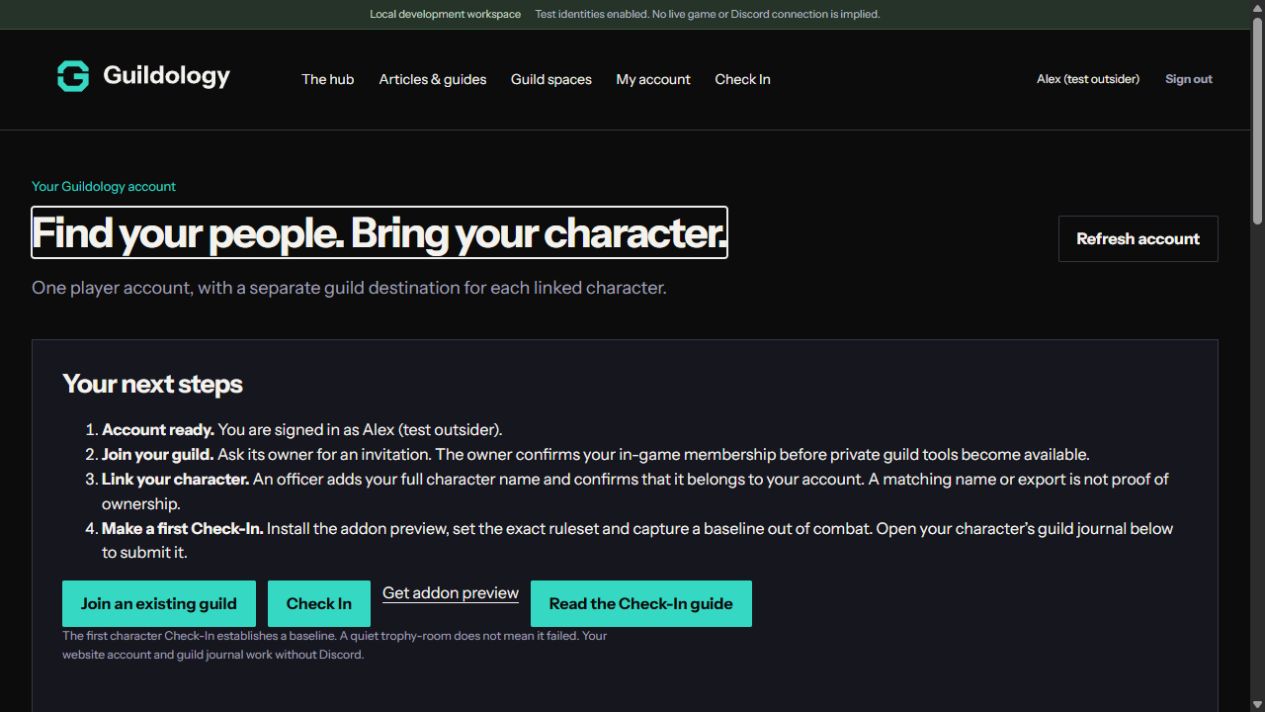
Create an account or sign in, then open your guild owner’s private invitation link and request access. Access remains pending until the owner checks your in-game guild membership and approves it. Open My account to see your status. After approval, paste your first character Check-In on the website and choose Propose character. An officer reviews your proposal. Approval links the character and records the held Check-In together; until then, the proposal does not establish ownership or create a journal entry. Keep real characters separate from any preview characters used for testing.
Set the exact ruleset with /guildology ruleset PVP if your guild uses PVP. Other rulesets must match the guild space’s configured identity. For Discord submission, also link your Discord account using the account-link flow on the website.
Start with a quiet baseline
Make the first character Check-In before levelling, training Enchanting or equipping new gear. Stand out of combat, click Get Check-In code, or run /guildology checkin. The addon selects the code so you can press Ctrl+C.
The first accepted snapshot establishes what you already have. It records your current level, available Enchanting information and readable equipped items. It does not announce every old achievement or item as new. If you first check in at level 20, Guildology does not invent the story of your first 19 levels.
Submit on the website or Discord
On the website, choose Check In from your account or the main navigation. Paste the complete code and select Check destination. Review the linked character, game, ruleset and destination guild, tick the confirmation box, then select Confirm Check-In. If more than one guild matches, you must choose one; Guildology never broadcasts the code to every match. Your guild’s Activity Journal also retains a direct submission form.
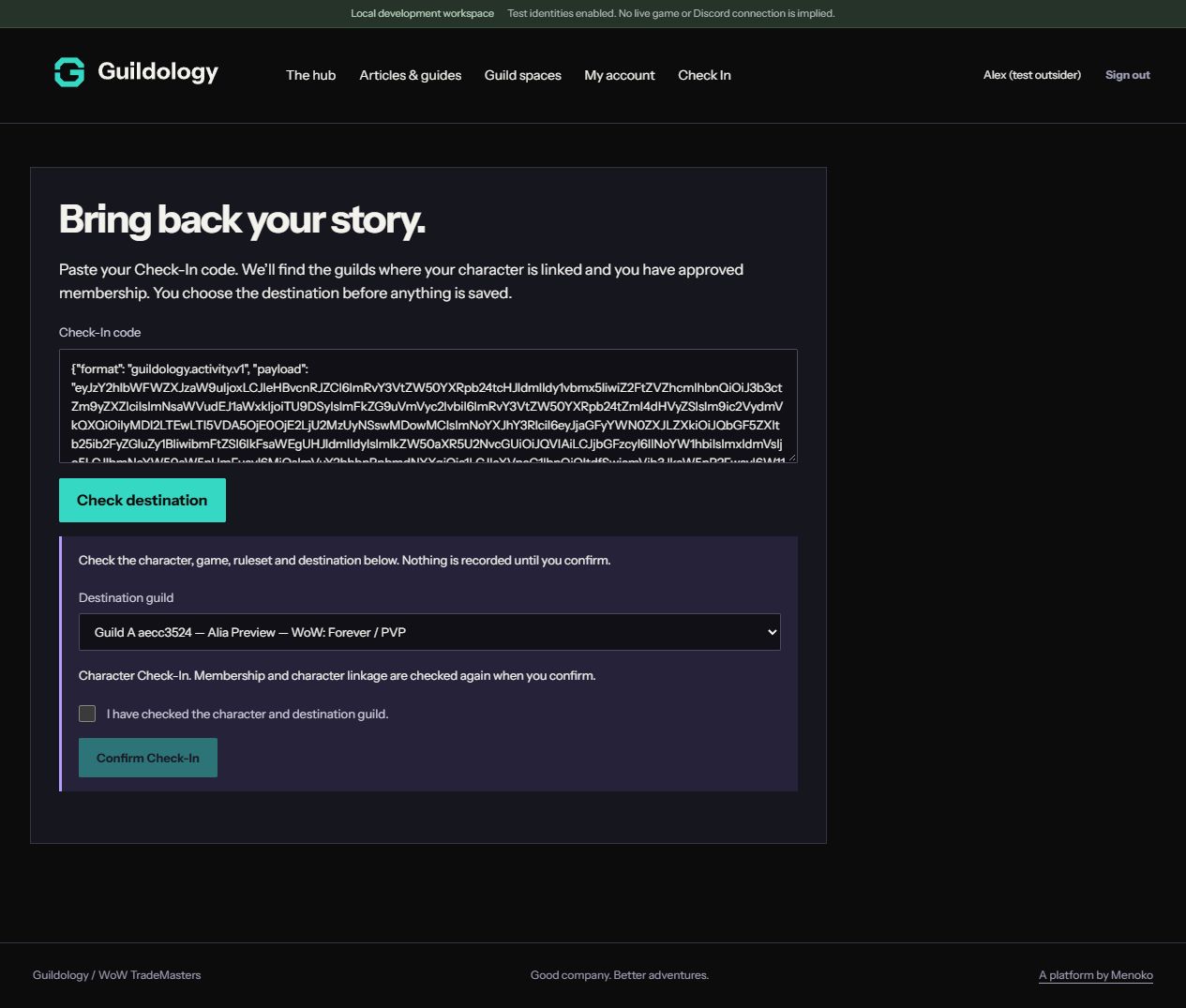
If your character is not linked yet, choose the guild you want to propose it to and confirm that it is your character. Wait for the officer’s decision in My account. Discord notifications are enabled by default when you connect Discord; you can turn them off in My account without losing website notifications.
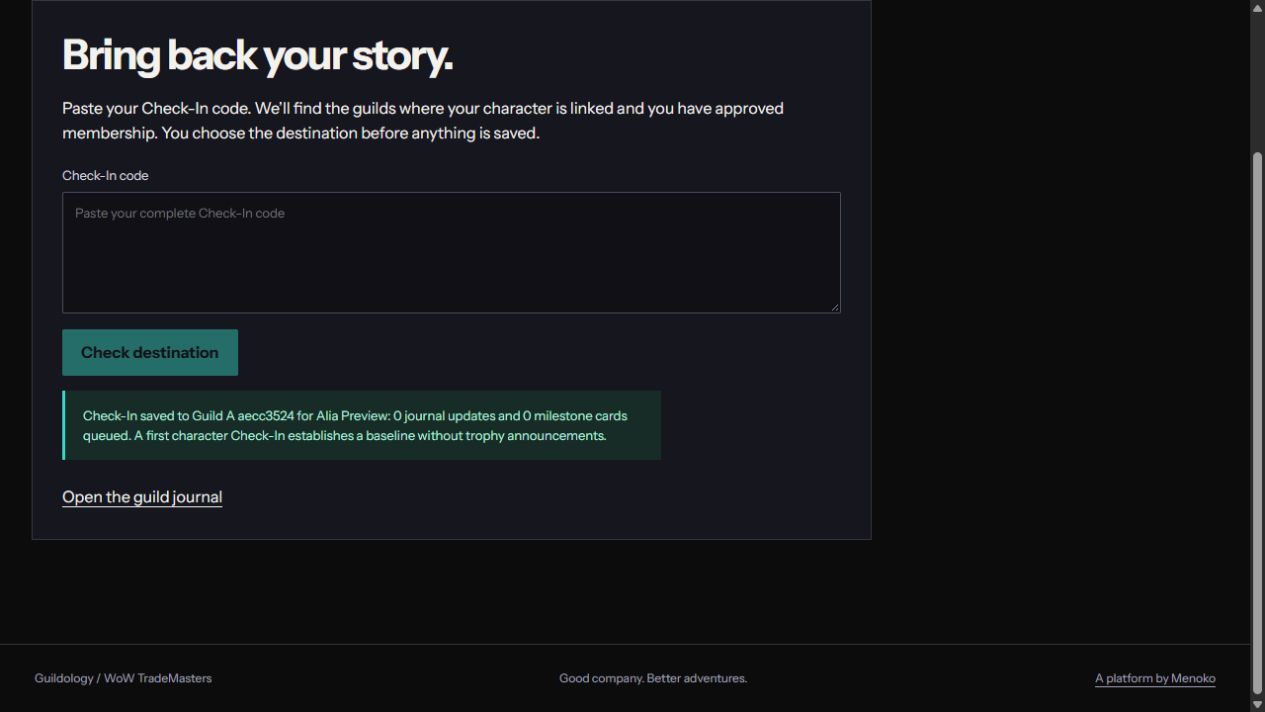
Read the receipt and use Open the guild journal to check the result. A quiet baseline or unchanged snapshot can legitimately produce zero trophy cards.
In Discord, run /guildology-start for a private account and membership guide. Link your Discord identity on My account, then paste the complete code into your guild’s member-only connected check-in channel. The channel may have a different name if your guild chose one. The bot must be connected to that intake channel, and your linked Guildology account must be an active member of the guild.
A code can be longer than Discord’s message limit. If that happens, save the complete code in a plain .txt file and attach that file by itself. Do not split one code across several messages. Share character data only in the guild destination you intend to use. The channel must be hidden from @everyone and restricted to approved members; Discord guests with channel access can read the original upload even if Guildology refuses it. Linking Discord does not approve guild membership.
What changes the journal, and what earns a card?
Generate a fresh Check-In after something changes. Level increases update the character view and journal. The current level-card thresholds are 10, 20, 30, 40, 50 and 60. An ordinary level between those thresholds can update the journal without another trophy card.
Enchanting increases appear in the journal when the client supplies the rank. Crossing a 25-point threshold can produce a profession card. The first readable profession observation establishes its baseline, so learning or first reporting a profession does not create a backlog of old milestones.
Newly equipped items can appear in equipment news and the journal. Rare quality or better can qualify for a loot card. This is an equipped-item observation, not proof of where an item dropped. Simply finding an item in your bags is not the same as equipping it.
Cards use amber for level milestones, copper for profession progress and emerald for equipment. These colours identify the kind of activity, not the item’s rarity. Your guild owner may make trophy-room a public showcase: anyone who can view that Discord channel can see the card’s names, accomplishments and selected screenshots. The website journal remains membership-controlled. Check-in intake must stay member-only. Announcement limits also prevent a large update from flooding Discord; not every journal entry needs a card.
Repeating a code is safe
If you are unsure whether a submission succeeded, you can submit the same code again. An accepted replay returns an already-recorded response rather than creating duplicate journal moments or trophy cards.
Putting an already recorded item back on should not earn a new acquisition trophy. A Check-In is a useful shared update, not an independent verification of gameplay. Keep your reports honest and use your guild’s normal review process where completion credit matters.
Character Check-Ins and run Check-Ins
Character Check-Ins capture your current progress. Run Check-Ins describe a recorded dungeon or raid session, including the roster and observations the recorder captured. Both use the same Check-In language and can be handed in through the connected intake channel.
For a run, choose one recorder. After submission, the recorder receives a separate private run sharing code for party screenshot uploads. Keep that sharing code within the party. Guild membership is still required; knowing the code alone does not grant access. Run completion credit requires officer review. Character milestone cards do not award dungeon completion credit.
Character Check-Ins do not currently accept screenshot attachments. Run screenshots use the separate Attach to run flow.
If something is missing or fails
Try again out of combat. If item information has not loaded, wait until your inventory and tooltips are readable, then generate a fresh Check-In. Missing equipment or profession data should preserve the previous website values rather than erase them.
If no character is linked, propose it through Check In on the website. If it is already linked to someone else, ask an officer to review the full name, ruleset and account assignment. For a Discord error, also check your account link and the channel’s connection.
Use the addon’s Diagnostics button or /guildology diagnostics to inspect API availability, probe results, event counts and recent errors. Press Ctrl+C to copy the selected report. Errors are session-only: copy it before /reload or logout, and review raw error text before sharing it. Available but not invoked is not a successful capture test.
Once the baseline is in place, the loop is simple: play, check in when something is worth sharing, and catch up with your guild’s story.
Bring the story back to your people.
Open your guild space to catch up on the journal or make your next Check-In.
Open guild spaces