

Website screenshots use the Modern theme. Paper is the default; choose Paper, Night or Modern in My account under Make the journal yours. Buttons and steps are the same in every theme.
Version scope: the working Warcraft integration described here is WoW: Forever. WoW: Midnight is a separate planned integration; these addon instructions do not apply to Retail, Classic or another expansion.
Guildology’s Forever website is a shared record of your guild’s adventures. Use it to find company near your level, share progress, keep dungeon and raid memories and recognize participation. Start with Joining Guildology if you do not yet have active membership. Approval lets you read the private guild space. Character approval is an additional step for submitting your own character or participating run Check-Ins; it is not a prerequisite for reading or adding screenshots to an existing run.
Screenshots show the actual Guildology website with test identities and mock game or server data. Select an image to open it at full size. In-game addon and Discord authorization screens are described in the text; they are not recreated as website screenshots.
The site currently accepts the Forever preview’s character and run Check-Ins. It is not connected to a Battle.net character-verification service. Levels, items, professions and run observations come from submitted addon records; real Forever-client capture still needs verification. Other game editions and editorial tools are not additional working Forever features.
1. Find the right guild space
Open Guild spaces and choose your guild. Check the game version, ruleset and region in its heading. Public visitors may see an introduction and, where published, a participation board. Active members can use the private workspace. Owners have Settings; owners and officers also have Review and character-management controls.
Overview provides current character activity, run totals and a starting point for your next Check-In. The owner sees a setup checklist. New members see their next onboarding steps until ready. My account shows your memberships, linked characters and latest Check-In dates across guilds.
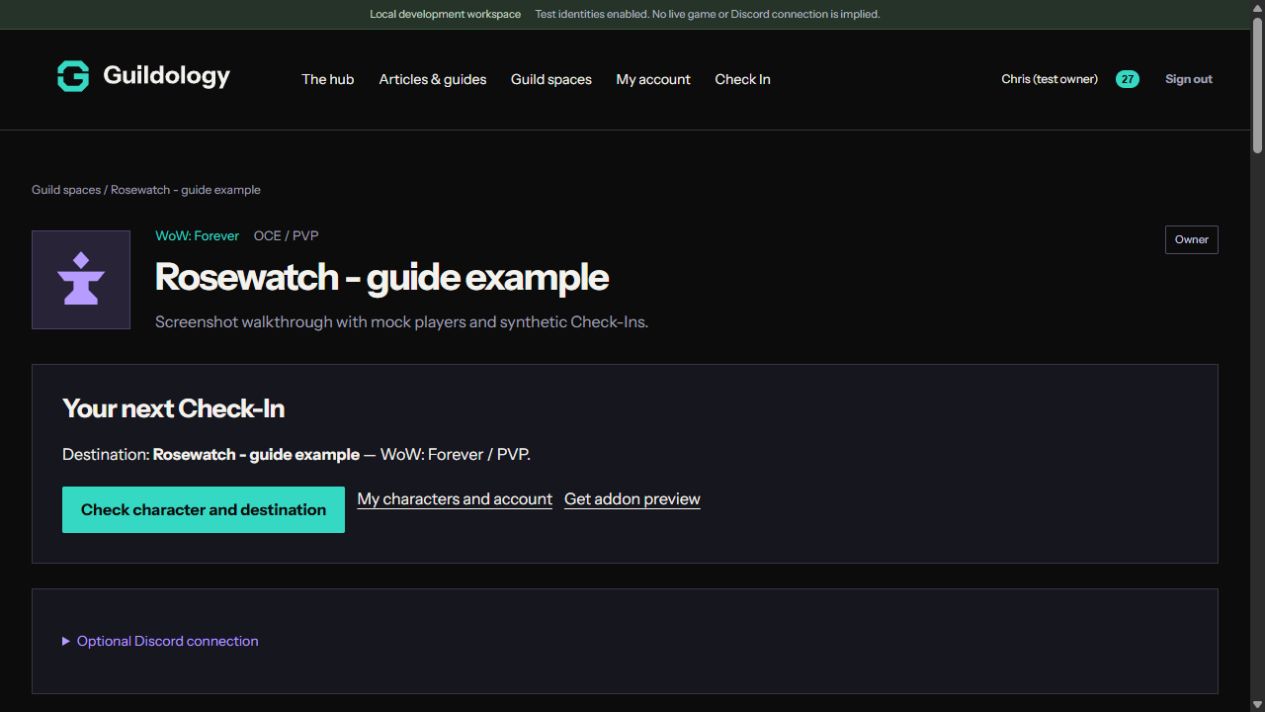
2. Submit a character or run Check-In safely
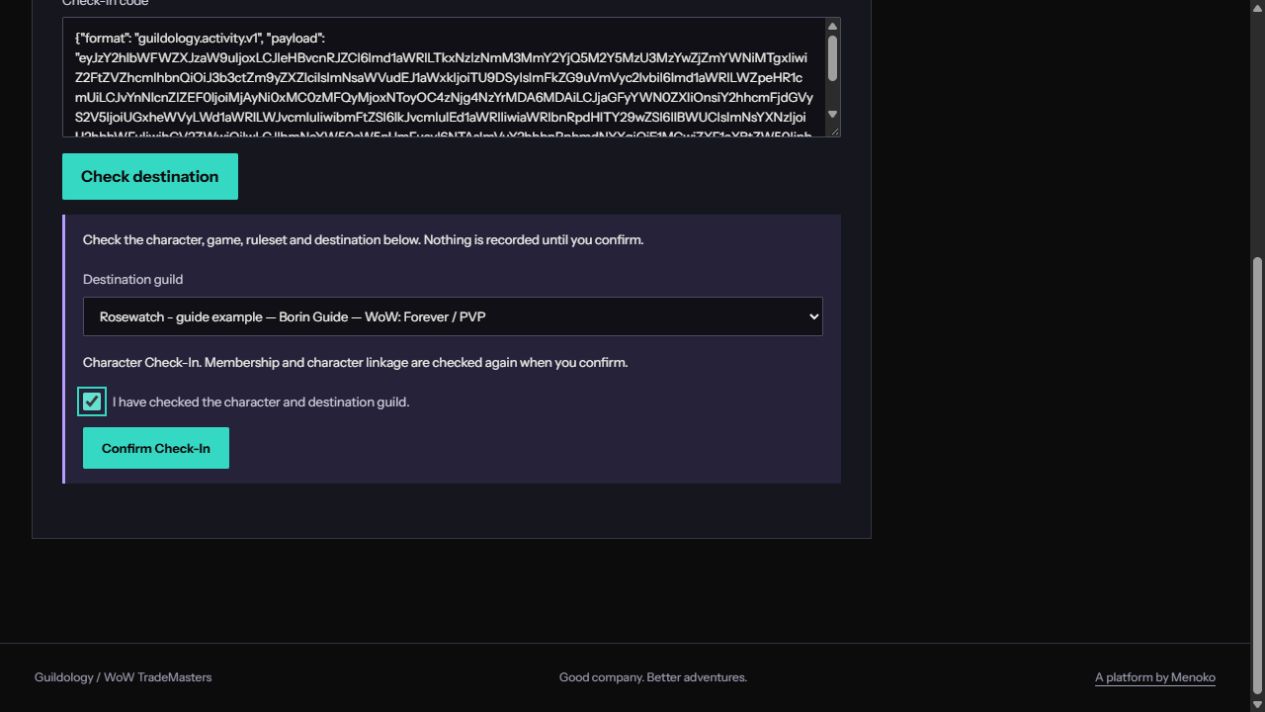
Use Check character and destination or the main Check In navigation. Paste the complete addon code and choose Check destination. Review the character, game, ruleset and destination. If several guilds match, choose the one you intend, tick the confirmation and select Confirm Check-In. No submission is broadcast automatically to every guild.
An unlinked character can be proposed to an approved guild from this page; an officer decides. The direct Check In form inside Activity Journal submits to the guild you already opened, so check its heading first. Repeating an accepted code returns an unchanged receipt without duplicate journal entries or announcements. An older snapshot may be refused when a newer one is already stored.
3. Find company in Activity Journal
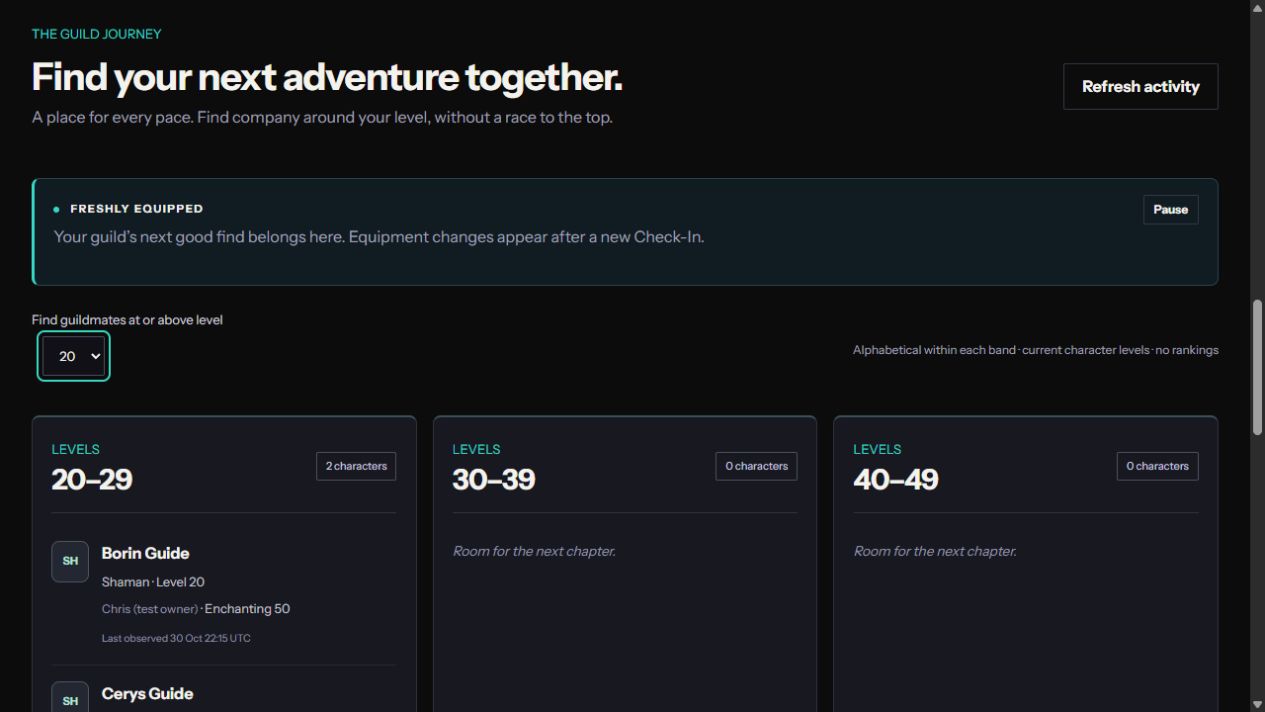
Open Activity Journal. Character cards are grouped into level bands and sorted alphabetically rather than ranked. Use Find guildmates at or above level to narrow the list, then contact those people through your usual guild channels. Last observed is the time of a submitted snapshot, not live online status. Waiting for a first Check-In lists roster characters without a baseline.
Use Refresh activity after new hand-ins. The FRESHLY EQUIPPED strip shows observed equipment changes and offers Pause and Resume. The latest guild moments appear below the character bands. Item facts and tooltips appear where supplied by the client; missing information is not independently looked up or proof of a drop source.
4. Understand progress and trophy cards
The first character Check-In records your existing level, readable equipment and available Enchanting information without celebrating all old progress. Later level increases and observed equipment changes update the journal. Level milestones at 10, 20, 30, 40, 50 and 60, Enchanting crossings in steps of 25, and eligible rare-or-better equipment changes can queue cards when Discord is configured.
A level or profession update can appear without a card. Announcement limits prevent large uploads from flooding Discord, and re-equipping previously recorded items does not create repeated acquisition trophies. Unavailable profession or equipment readings preserve previous known values. Character milestone cards do not award run completion credit.
5. Record a dungeon or raid
Choose one recorder. In the addon, set the guild’s ruleset before starting, enter the instance and use Start current instance or /guildology start.
Before finishing the active recording, check roles and requested credit. The recorder can use /guildology role Full Name=Tank, with Healer, Damage or Unknown as alternatives. To exclude a guest from requested completion credit, use /guildology credit Full Name=off. To request credit again, use /guildology credit Full Name=on. Use the exact participant name. These commands work only while the recording is active; they do not edit a finished run. Check them before Finish completed or Finish abandoned, then copy the resulting final export.
Finish completed or /guildology finish Completed reports completion; use Finish abandoned or /guildology finish Abandoned for an abandoned session. Run Check-In or /guildology export copies the final run record.
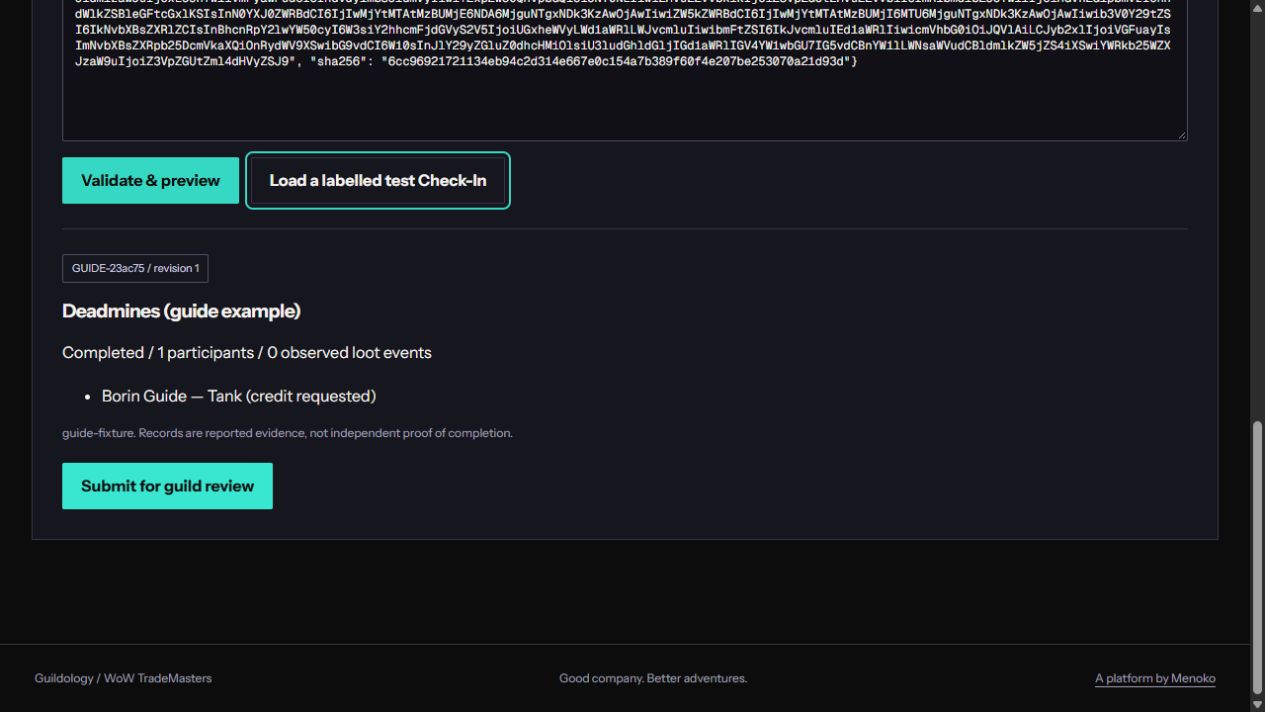
On the website, open Run Check-In, paste the final code, select Validate & preview and check the dungeon, outcome, participants, requested credit and revision. Choose Submit for guild review. A recorder must have a linked participating character in this guild. Each credited character must be on the guild roster before an officer can confirm the run.
6. Read Dungeon Journal records
Open Dungeon Journal to find submitted runs, statuses and review notes. Expand Full attendance to inspect recorded participants, roles and available join/leave intervals. Expand Recorded loot to see observed item IDs, quantities and available source/binding information. Read recording-gap notices before treating the record as complete evidence. Unknown fields and missing intervals are not invented.
A run sharing code lets approved members attach screenshots through Discord. Keep it within the party and share it directly. A public website record ID does not replace this private sharing code for Discord uploads. A run link opens that record after the viewer signs in with the required guild access.
7. Add screenshots and choose public use
On a run, choose Add private screenshots and select PNG or JPEG files, up to 8 MB each and 10 images per run. Any active guild member can contribute. Uploading a screenshot does not confirm completion. Character snapshots do not have this attachment flow.
For a public trophy-room image, the uploader first confirms permission from the people shown and chooses Allow public showcase. An owner or officer then chooses Use on public trophy card. A private screenshot is not automatically selected for public delivery. The displayed trophy image window runs for five minutes after confirmation; otherwise the brand image may be used. You can later Withdraw public permission on your own image; reviewers can Remove from trophy card. Previously viewed or copied Discord content cannot be recalled from other people’s devices.
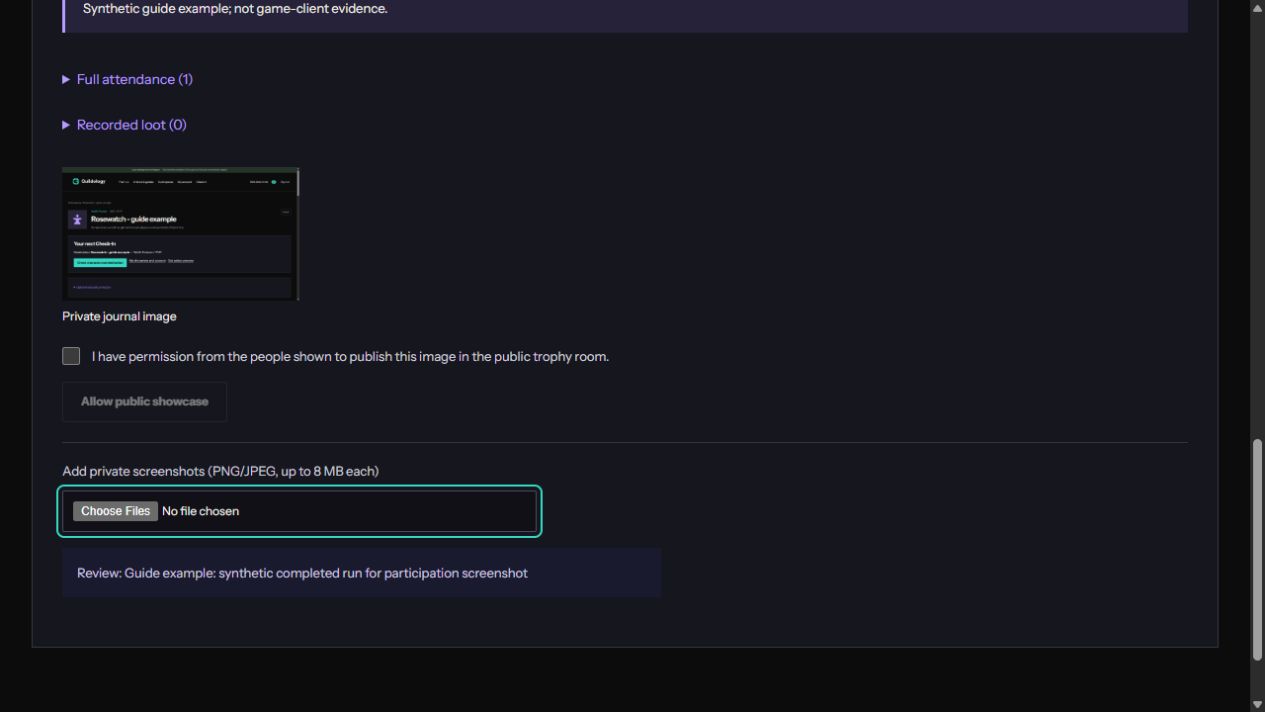
The five-minute trophy image window is not an expiry for website screenshot uploads. You can add private screenshots to the run later. Discord’s Attach to run prompt has its own separate five-minute deadline. You will not see Use on public trophy card as a regular member; an owner or officer handles that second step after your permission is saved.
8. Review runs as an officer or owner
Open Review, check the latest revision, attendance, outcome, requested credit, recording gaps and screenshots, then enter a Review note. Confirm completion credits a completed run; Reject refuses it; Void credit removes its participation credit. An abandoned run cannot be confirmed as completed. A review note is required for every decision.
If the run changed while you were reviewing, select Refresh runs and inspect the new revision before trying again. A revised submission can require a new review. Missing credited roster characters must be added before confirmation. If the finished record requests inaccurate guest credit, do not confirm it: reject the submission and discuss it with the recorder. The current preview has no supported editor for finished-run roles or credit, and the website has no inline participant/loot editor. The addon’s role and credit commands apply before finishing, not afterwards.
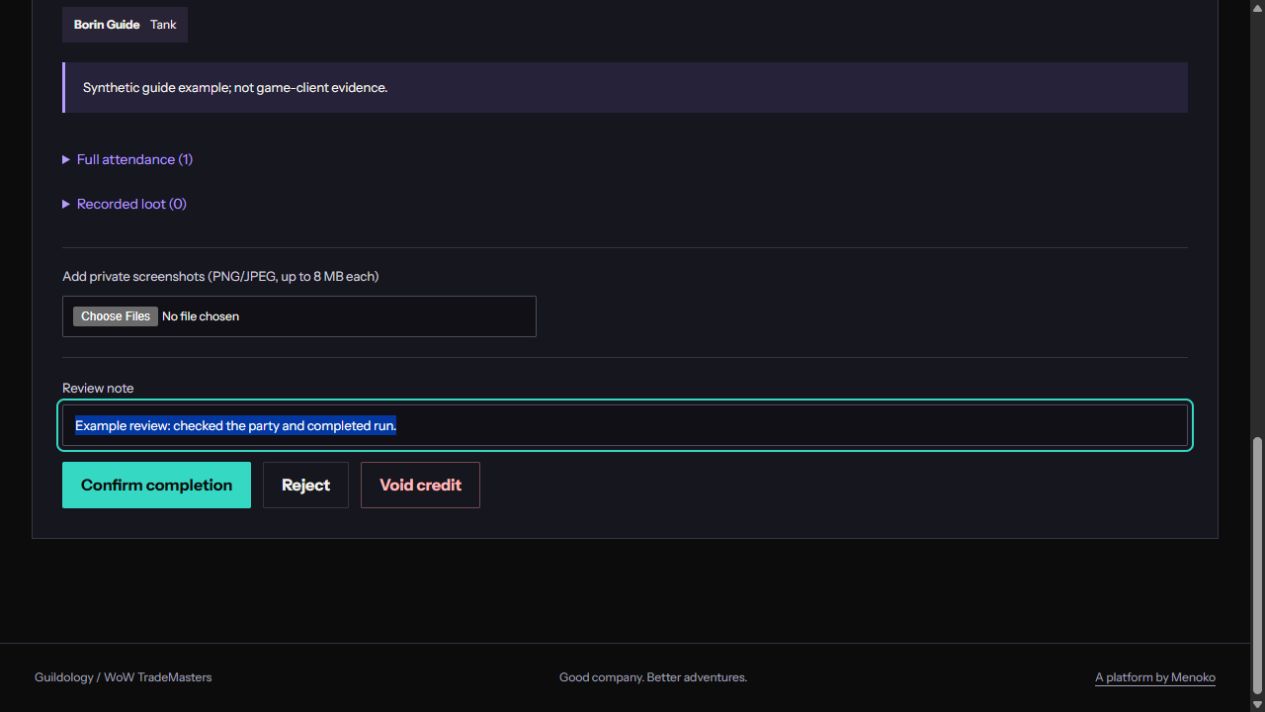
Check the resulting status after the action: Confirmed is eligible for participation credit; Submitted is still waiting. If you cannot see Review or these buttons, your role is Member and an owner or officer must perform the review. The screenshot in this section deliberately shows the officer view.
9. Use the participation Leaderboard
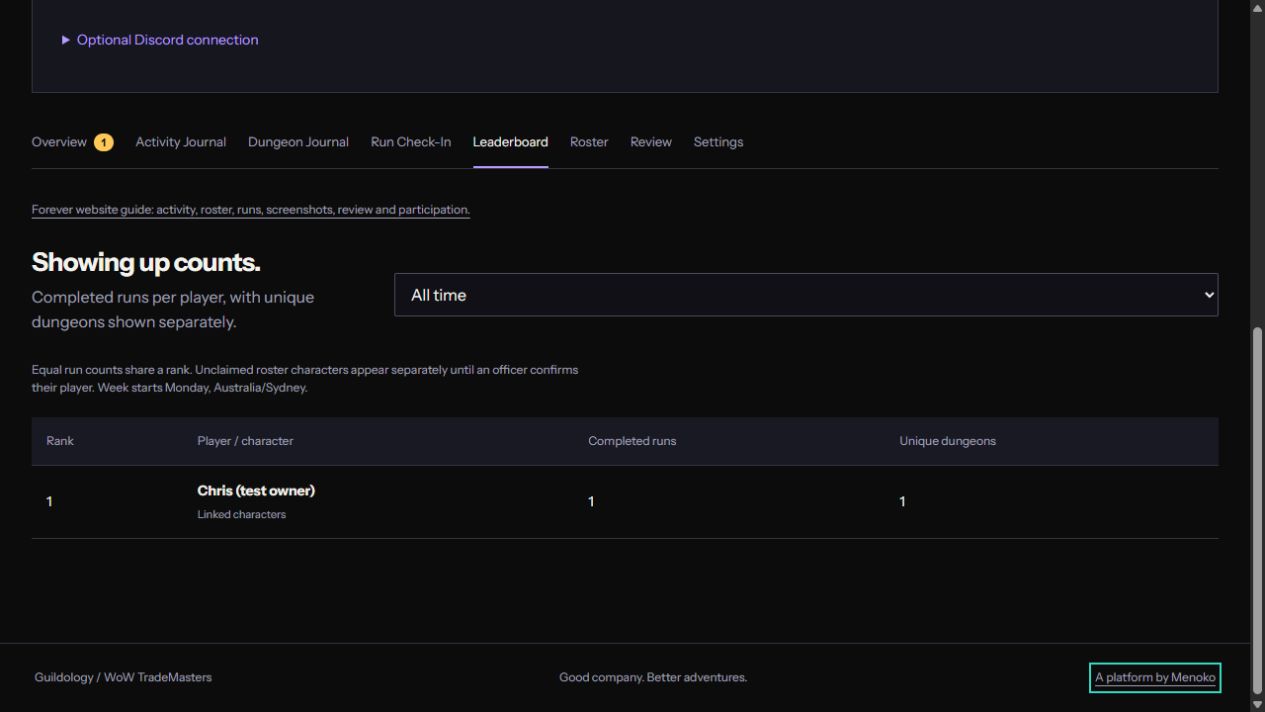
Choose Leaderboard, then All time or This week (Sydney). The week begins Monday in Australia/Sydney and uses run end times. Only confirmed runs with completion credit count. Equal completed-run totals share a rank; Unique dungeons is shown separately and does not break ties.
Officer-linked alts combine under one player account. A single run counts once per player even if more than one linked character appears in its credit. Unclaimed roster characters appear separately until linked. A screenshot, character level card or pending run does not add participation credit.
10. Read and manage the Roster
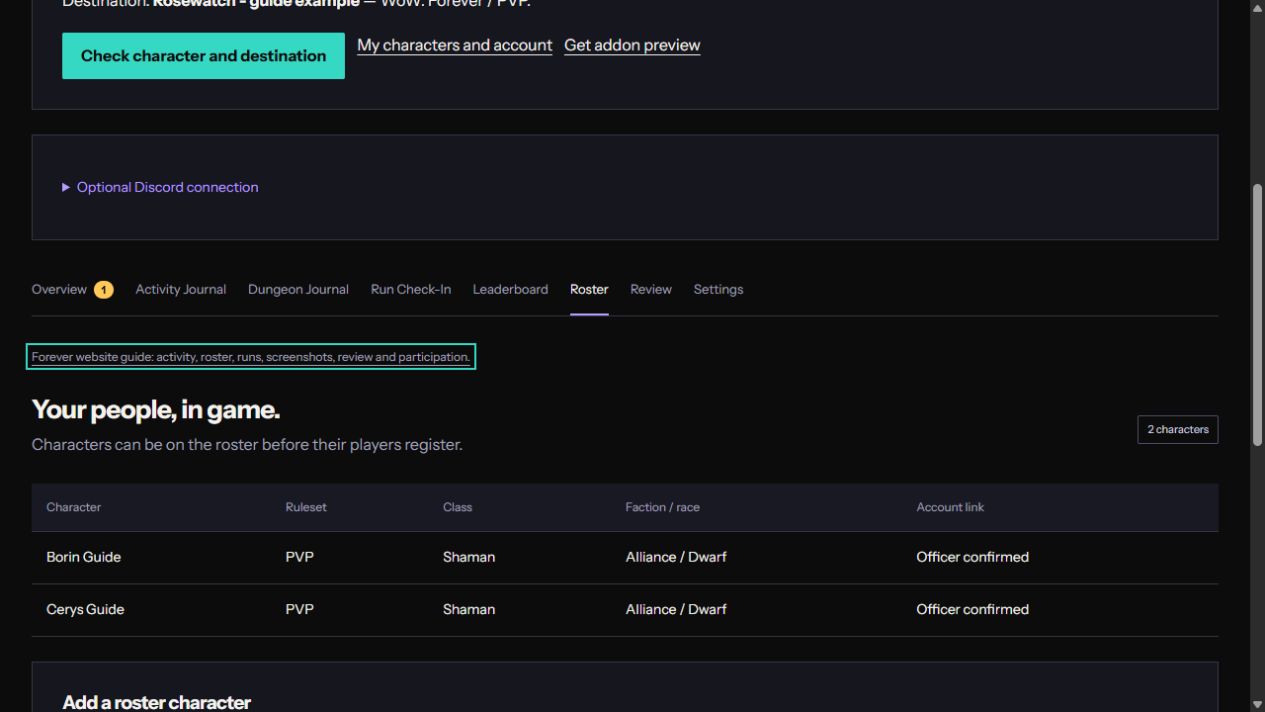
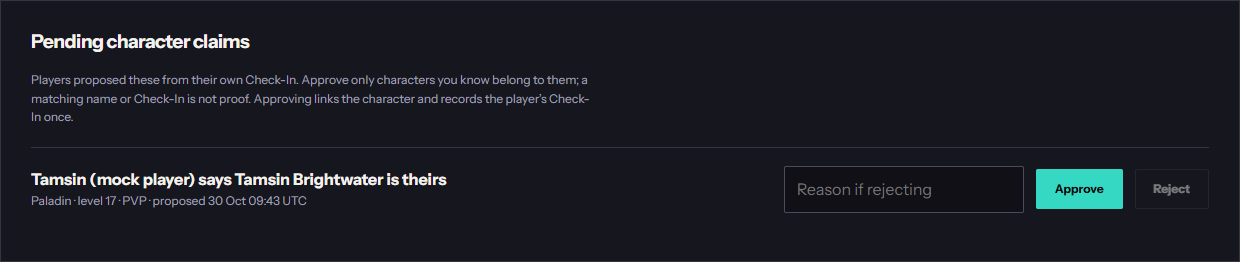
Members can read the roster’s names, rulesets, class, faction/race and account-link states. Owners and officers can Add a roster character, Confirm player link and decide Pending character claims. A rejected claim needs a short reason; the player sees it in My account and can correct the issue before proposing again.
Routine linking cannot transfer a character already assigned to another account. Ask the owner to use the separate Character account recovery process after verifying the player. Recovery keeps this guild’s character identity and journal history; it is not an in-game guild transfer.
11. Manage your account, access and connections
My account lets you edit your display name, read or mark notifications, check character proposals, connect or disconnect Discord and change notification DM preferences. Discord is optional for website features. A guild-space owner uses Settings to change the introduction, public listing and leaderboard visibility, invite/approve members, manage roles, review access history and configure or disable Discord destinations.
Follow the server-management guide for those owner procedures. Public listing, public leaderboard totals and public trophy screenshots are distinct choices. Publishing an introduction does not publish the roster, journal or all screenshots. If access is revoked, contact the owner; signing in again cannot restore it.
12. Troubleshoot a missing update
Refresh the journal and check the exact guild and ruleset. If your character has no baseline, use Check In to propose it or ask an officer to inspect its link. If it belongs to another account or its bound game identity changed, ask the owner to investigate instead of renaming it to bypass the check.
For addon problems, try out of combat after item data has loaded, generate a fresh code and inspect Diagnostics or /guildology diagnostics. Copy session-only diagnostics before reload or logout. For a quiet trophy-room, check whether this was a baseline or unchanged snapshot before asking the admin to inspect the Discord connection. Your private journal receipt is the first place to confirm what was saved.
Find a WoW: Forever guild around your life
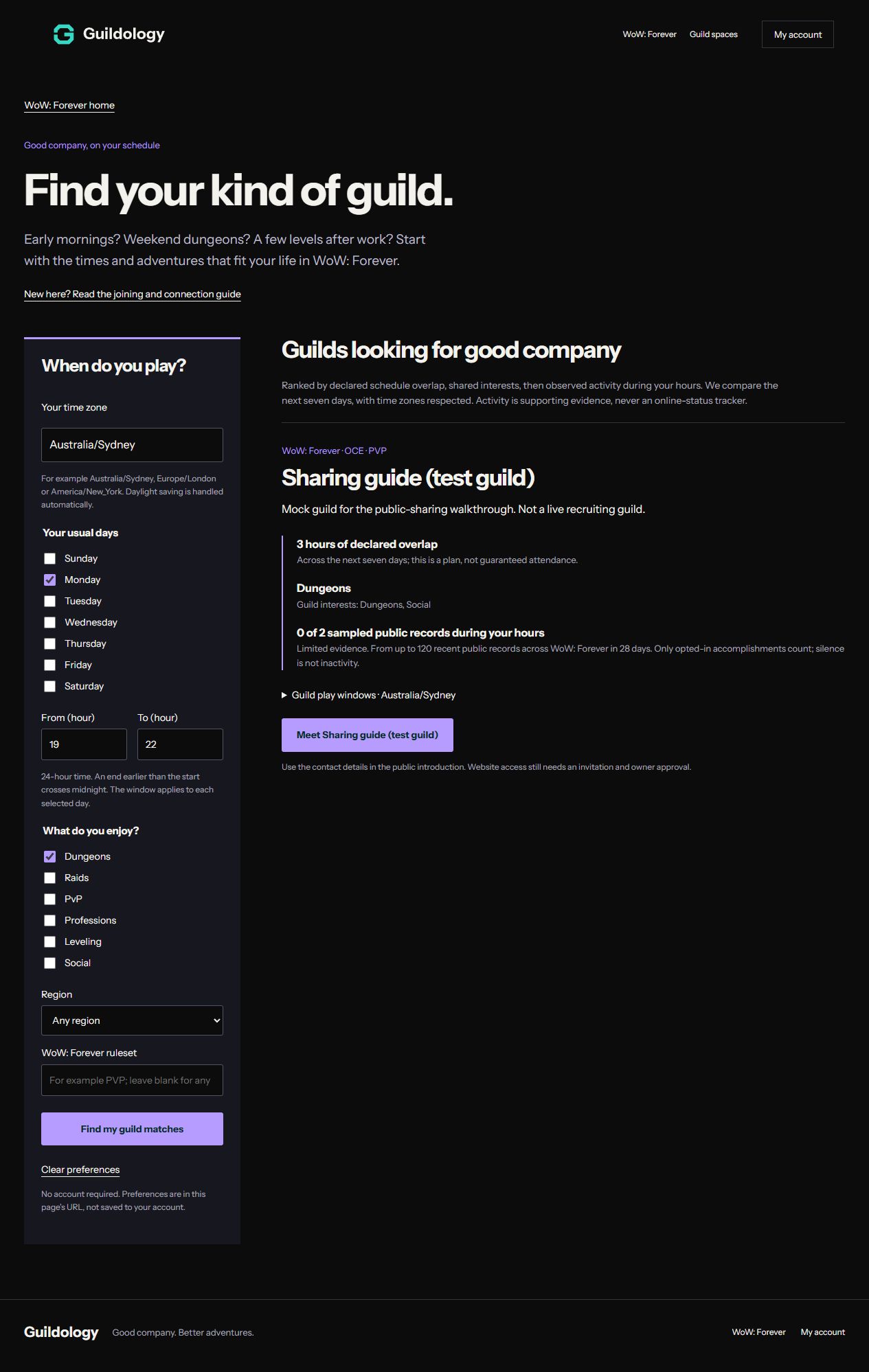
Open Find a WoW: Forever guild. You can browse without an account. Check your time zone, select usual play days, and enter the start and end hour in 24-hour time. An earlier end crosses midnight. Choose interests such as Dungeons, PvP, Professions or Social, and optionally a region or ruleset. Select Find my guild matches.
Results explain declared schedule overlap, common interests and how many sampled public accomplishments fall during your hours. Play times are plans, not guaranteed attendance. Observed activity uses only guild-approved public stories; limited evidence or silence is not proof of inactivity. Your finder preferences are in the URL and are not saved to your account.
Select Meet followed by a guild’s name to read its introduction and contact instructions. Ask the guild how to join in game. Reading a listing never grants website membership; the owner still issues a private invitation and approves membership. If no guilds match, clear the filters or try a different region/ruleset. Owners can opt into recruitment in Settings.
Follow the public guild stories
The Guildology hub shows public accomplishments across supported games; the WoW: Forever home page filters to WoW: Forever. The stream covers 28 days and checks for updates every 30 seconds while the page is visible. Select Pause updates to hold the view, Refresh to check manually, or Resume updates to continue. An empty stream means no eligible guild stories have been shared yet; it is not a sign-in requirement.
Guild owners control which new categories appear and whether character milestones include names. Open your guild’s Overview to see its policy. Owners change it in Settings under Share your guild’s story. Private journal access, screenshot permission and Discord channel audiences are separate controls.
What comes after discovery?
Profession planning, beginning with Enchanting, and gear acquisition paths are planned for WoW: Forever. They are not available optimizers yet. Current Check-Ins record progress and equipped items; they do not capture the recipe, material, price or verified item-source data needed to promise an optimal route.
Your private character journey, without a guild
Open My journey for personal character Check-Ins, level and Enchanting goals, equipped items and private history. You need your own Guildology account; guild membership and Discord are optional. Follow the private WoW: Forever journey guide for preview, saving, goals, data download and removal. This is a progress companion; recipe optimization and gear acquisition paths still need verified game data.
Bring the story back to your people.
Open your guild space to catch up on the journal or make your next Check-In.
Open guild spaces