
Website screenshots use the Modern theme. Paper is the default; choose Paper, Night or Modern in My account under Make the journal yours. Buttons and steps are the same in every theme.
Version scope: the working Warcraft integration described here is WoW: Forever. WoW: Midnight is a separate planned integration; these addon instructions do not apply to Retail, Classic or another expansion.
Your server’s Guildology channels connect to a private guild journal on the website. You choose which Check-Ins to share. The bot records updates; officers review run completion credit. Ask your admin which channel is the Check-In intake and which is the trophy-room: names can differ between servers. To read cards, you only need permission to view that Discord channel. To open the private website journal or contribute uploads, complete website membership approval. Link a character before submitting your own character or participating run Check-Ins.
Screenshots show the actual Guildology website with test identities and mock game or server data. Select an image to open it at full size. In-game addon and Discord authorization screens are described in the text; they are not recreated as website screenshots.
1. Get your account ready once
Run /guildology-start from the slash-command picker for a private starting guide. Open My Guildology account, create or sign in to your website account, accept your owner’s private invitation and wait for membership approval. Then use website Check In to propose your first character and wait for officer approval. Follow the Joining Guildology guide below if you are new.
If signing in with Discord already shows Discord account linked for the correct account, no second connection is needed. Otherwise, in My account, choose Connect Discord and authorize using the Discord account you actually use in this server. Confirm the website says Discord account linked. This identifies you; it does not approve membership or your character. If linking is unavailable, expand Linking from Discord instead?, create a link code and use /guildology-account code:… from Discord’s slash menu within 15 minutes. That command also works in a DM with the bot. Keep the code private.
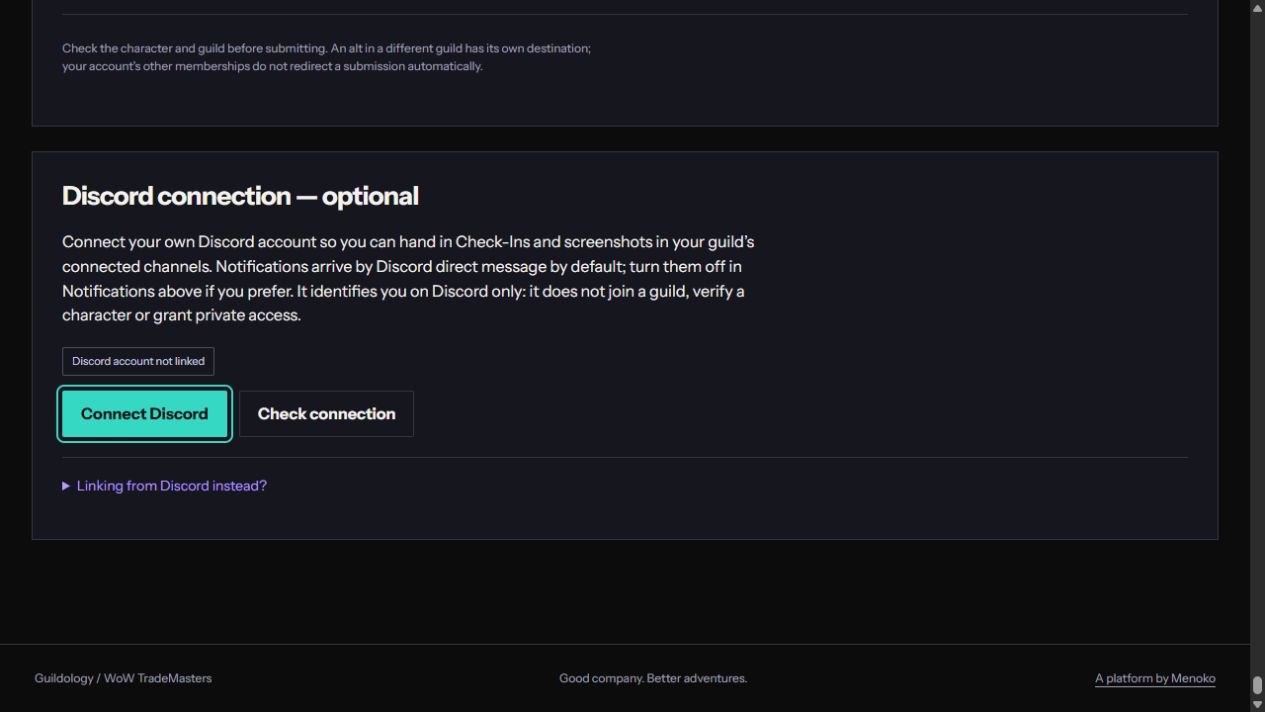
Ready for your first Discord hand-in means three checks are complete: this guild membership is Active on My account, your character appears under Your linked characters, and Discord account linked is shown for your own Discord identity. The admin must also have connected the intake channel. If you only want to add screenshots to somebody else’s run, active membership and your Discord link are sufficient; your own character need not record that run.
2. Install the addon and create a character Check-In
Get addon 0.2.3-preview from My account, install it with Guildology.toc directly inside the Guildology folder under Interface/AddOns, and enable it in the client. Set /guildology ruleset PVP only if your guild uses PVP; otherwise use the exact ruleset shown in your guild space.
Open /guildology, choose Get Check-In code, then copy the selected code with Ctrl+C. /guildology checkin is the command alternative. The addon is a preview; actual Forever capture and client compatibility still require real-client verification.
3. Share the complete code in intake
Paste the complete character Check-In into the connected member-only intake channel. If Discord’s message limit is too short, attach the complete code as one plain .txt or .json file instead. Do not split it across messages. Check the bot’s receipt: it reports journal updates and queued milestone cards, or says the code was already recorded.
Your first accepted character Check-In establishes a baseline; it does not announce old levels or equipment. Make later Check-Ins after levelling, training Enchanting or equipping something worth sharing. A journal update can be useful even when it earns no card. Use website Check In to propose an unlinked character; Discord intake does not create that proposal for you.
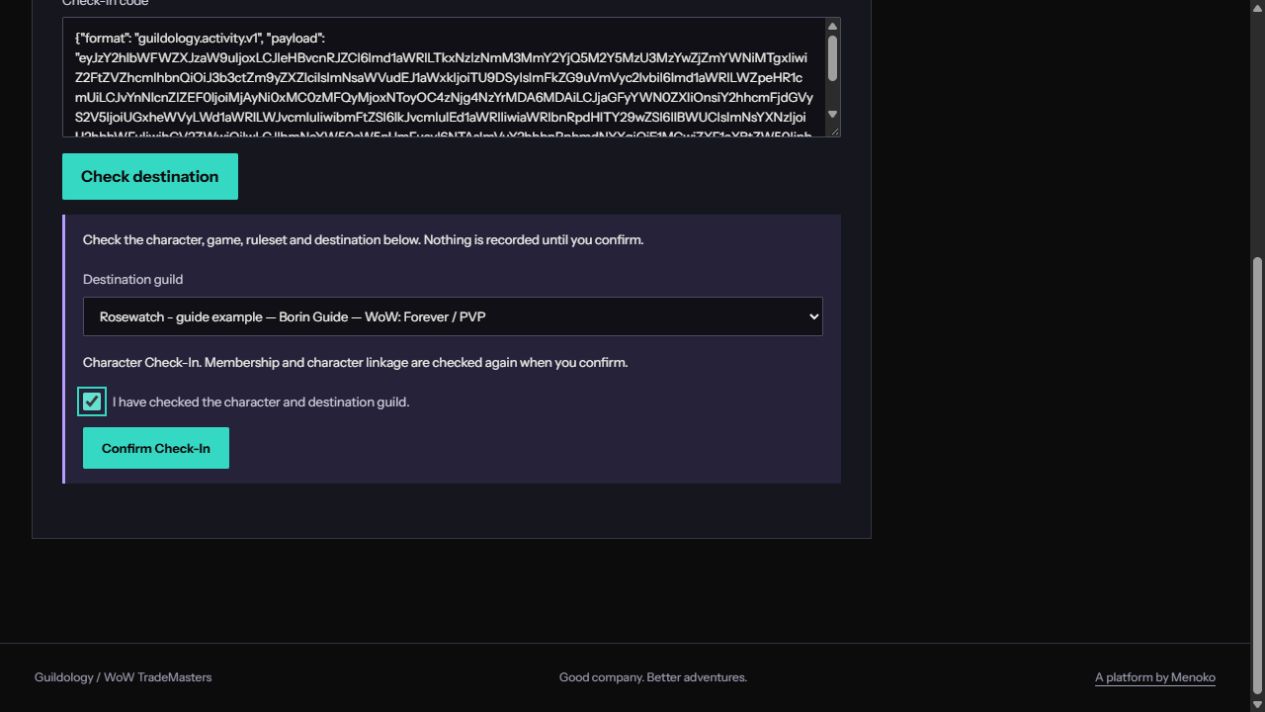
The screenshot here is the website fallback, not Discord’s message box. If intake is unavailable, open Check In on the website, paste the same full code, choose Check destination and Confirm Check-In. Use the receipt to verify the intended guild; return to Discord only when the admin has repaired intake.
4. Share a dungeon or raid run
Choose one recorder from the party. That person starts recording inside the instance using Start current instance or /guildology start, then finishes with Finish completed or Finish abandoned. Run Check-In or /guildology export provides the final run code. The recorder must have a participating character linked to their approved account in the destination guild.
Submit that final run code in intake, just like a character code. The bot records it for review and tries to DM the recorder a private run sharing code. If DMs are blocked, find the code inside the signed-in website Dungeon Journal. Share it directly with party members who need to add screenshots. Do not post the sharing code into a channel. A completed export is a report; an officer still has to confirm completion before it earns participation credit.
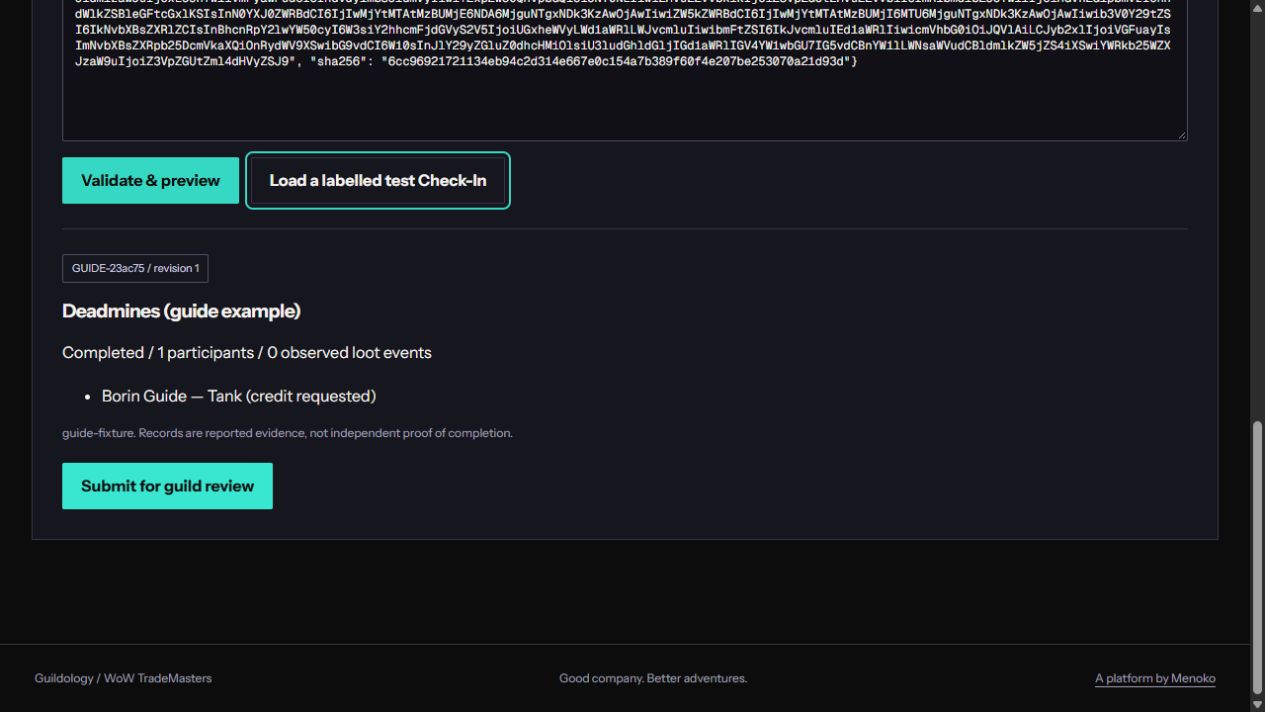
In Discord, success is the bot’s Run Check-In received reply. On the website, the run appears in Dungeon Journal as Submitted until an officer reviews it. The illustration is the website submission alternative; ordinary Discord submission does not show that preview form.
5. Attach screenshots to the right run
In the connected intake channel, use /guildology-screenshot, set run to the private sharing code and image to a PNG or JPEG. Each image can be up to 8 MB, with at most 10 per run. Approved guild members can contribute even when someone else recorded the run. A website record ID alone does not authorize this Discord upload.
Alternatively, upload your run screenshots into intake, select Attach to run on the bot’s prompt within five minutes, and enter the private sharing code. Only the uploader can complete that prompt. If it expires, start a fresh upload or use the slash command. Sending images with a run export can attach them to that run directly. Character Check-Ins do not accept screenshots.
The original Discord image or export remains visible to everyone who can read the channel. Guildology’s private website permissions do not hide that original message. If you post in the wrong channel, use Discord’s message controls and ask an admin for help.
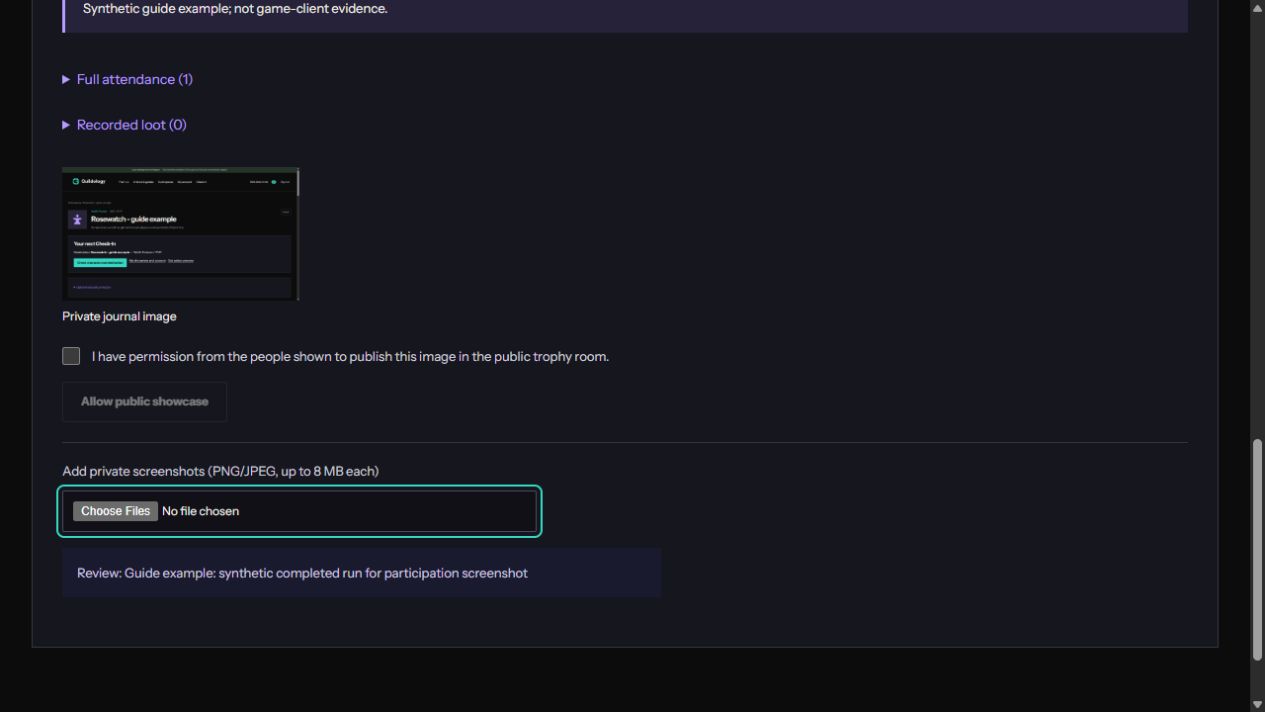
Website alternative: open your guild’s Dungeon Journal, find the run, then use Choose Files under Add private screenshots. A successful upload appears as a thumbnail on that run. If the permission checkbox is unticked, Allow public showcase stays disabled; you can leave it that way and keep the image private.
6. Read cards and follow the full story
Trophy-room cards celebrate selected milestones and reviewed runs. Follow Guild journal or View run on a card and sign in to see the private record. Public cards do not give visitors access to the full journal. The website Leaderboard shows completed-run participation, not a score for character milestones or screenshot uploads.
Run images stay private by default. To permit a public trophy image, open the screenshot on the website, confirm you have permission from the people shown and select Allow public showcase. An officer must then select Use on public trophy card. An unapproved image is not automatically public because it was uploaded in intake.
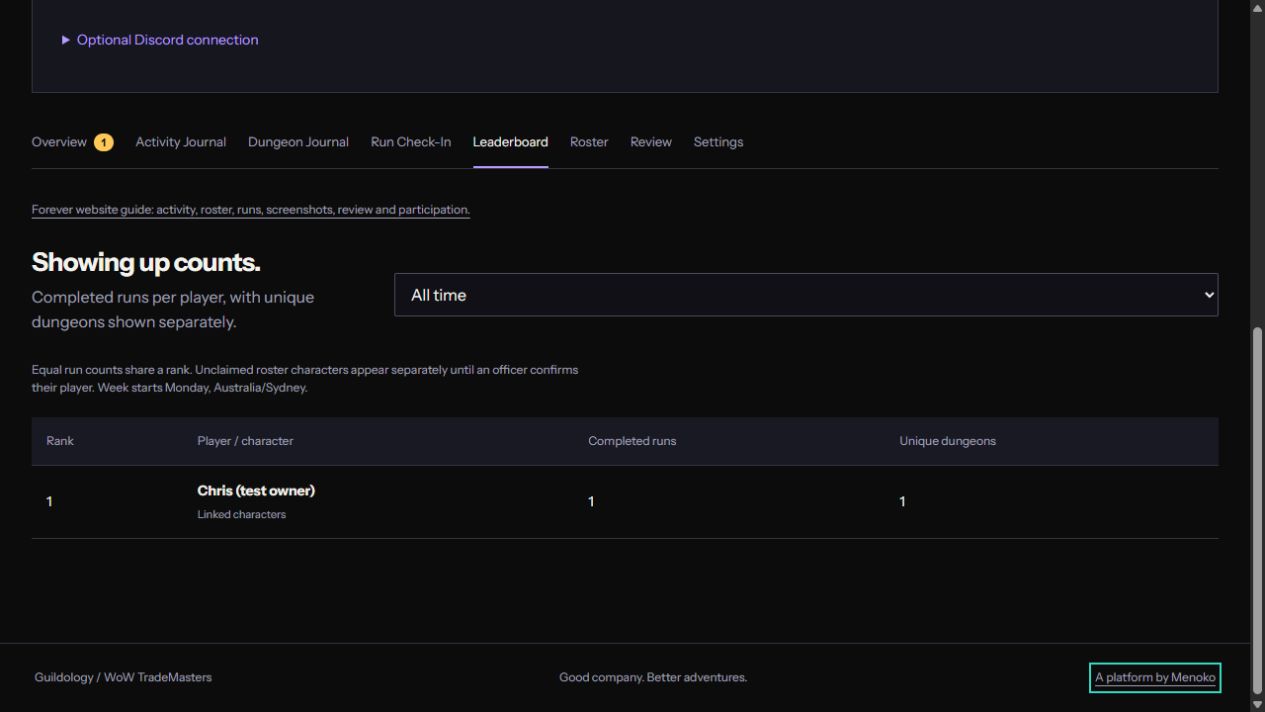
The participation-board illustration is the website view, not a screenshot of a Discord trophy card. A server may have no public leaderboard at all. Use the card’s View run or Guild journal link to open the full private record with your signed-in website account.
7. Manage notifications and recover from errors
Approval and character decisions appear in My account → Notifications. Linked Discord accounts receive notification DMs by default; turn off Also send these to me as a Discord direct message there if you prefer. If a DM cannot be delivered, check the website. Run-sharing receipts and command replies are separate from that notification preference.
If intake reports an account-link error, connect the correct Discord account. If it reports membership pending, ask the owner. If the character is unlinked, propose it on the website. For a ruleset mismatch, correct the addon ruleset and generate a fresh code. If an unchanged receipt appears, your original submission already succeeded: no duplicate card is needed.
The bot tries to send intake errors by DM. If that fails, it may reply in the channel and remove that reply after 60 seconds. An ignored message can mean the channel is not connected or its privacy settings need repair; ask the admin to run /guildology-status and /guildology-audit. You can continue using website Check In while the Discord connection is repaired.
Public website stories and guild discovery
Your guild owner may also opt into public stories on the Guildology and WoW: Forever home pages. These choices start off, are separate from the Discord trophy-room audience, and include a guild-controlled choice to show character names on public milestones. View the current website policy in your guild’s Overview. Private screenshots still need their separate public-use permission and officer selection. To find another community, use Find a WoW: Forever guild; Discord membership never grants website access.
Bring the story back to your people.
Open your guild space to catch up on the journal or make your next Check-In.
Open guild spaces