

Website screenshots use the Modern theme. Paper is the default; choose Paper, Night or Modern in My account under Make the journal yours. Buttons and steps are the same in every theme.
Version scope: the working Warcraft integration described here is WoW: Forever. WoW: Midnight is a separate planned integration; these addon instructions do not apply to Retail, Classic or another expansion.
Guildology keeps your guild’s journal and participation records on the website. Connecting your Discord server lets approved members hand in Check-Ins and screenshots, and brings trophy cards back to your channels. Follow these steps as the guild-space owner, working with a Discord admin if that is someone else.
Screenshots show the actual Guildology website with test identities and mock game or server data. Select an image to open it at full size. In-game addon and Discord authorization screens are described in the text; they are not recreated as website screenshots.
This guide covers the current preview. You do not need a bot token, a Developer Portal application or Discord Administrator permission to follow it. The Forever addon still needs verification in the real game client; website previews and sample captures do not prove game-client compatibility.
1. Prepare the two kinds of access
Create or sign in to your Guildology account. You must own the website guild space to manage Settings. If another person already owns it, ask them to do the website steps; a Discord admin cannot open Settings just because they manage the server. Installing and connecting the bot also needs Discord’s Manage Server permission in the chosen server. Your personal Connect Discord link is for member hand-ins and is separate from installing the server bot. If the owner and Discord admin are different people, the owner creates the pairing command and shares it privately with that admin to run in the intended server. Being an officer on the website does not automatically grant that Discord permission, and a Discord role does not grant website membership.
2. Create the website guild space
Open Guild spaces and select Create a guild space. Enter Guild name, URL slug, Ruleset, Region and Introduction, then choose Create space. WoW: Forever is the currently available game version. Use the ruleset your players will set in the addon. Leave Publish the guild introduction unchecked if you want a private introduction.
If your guild already has a space, ask its owner to configure that space instead of creating a duplicate. Overview shows the setup checklist; Settings holds invitations, membership and Discord connections.
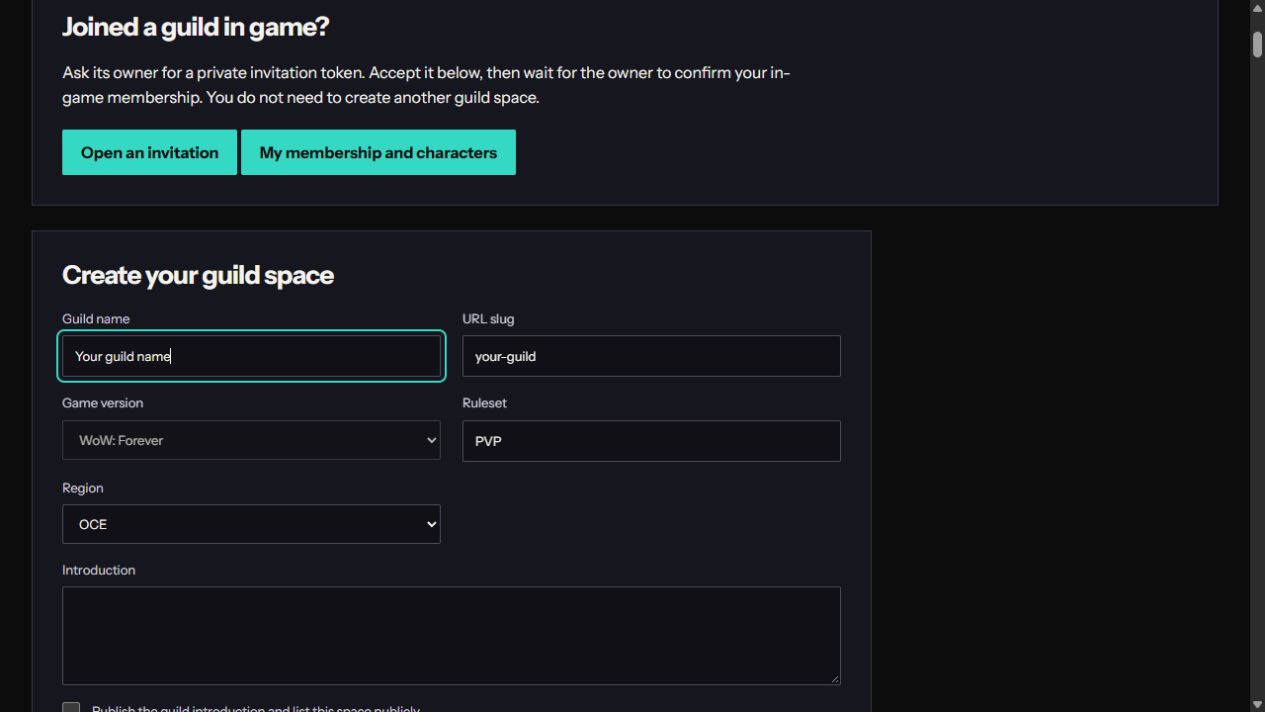
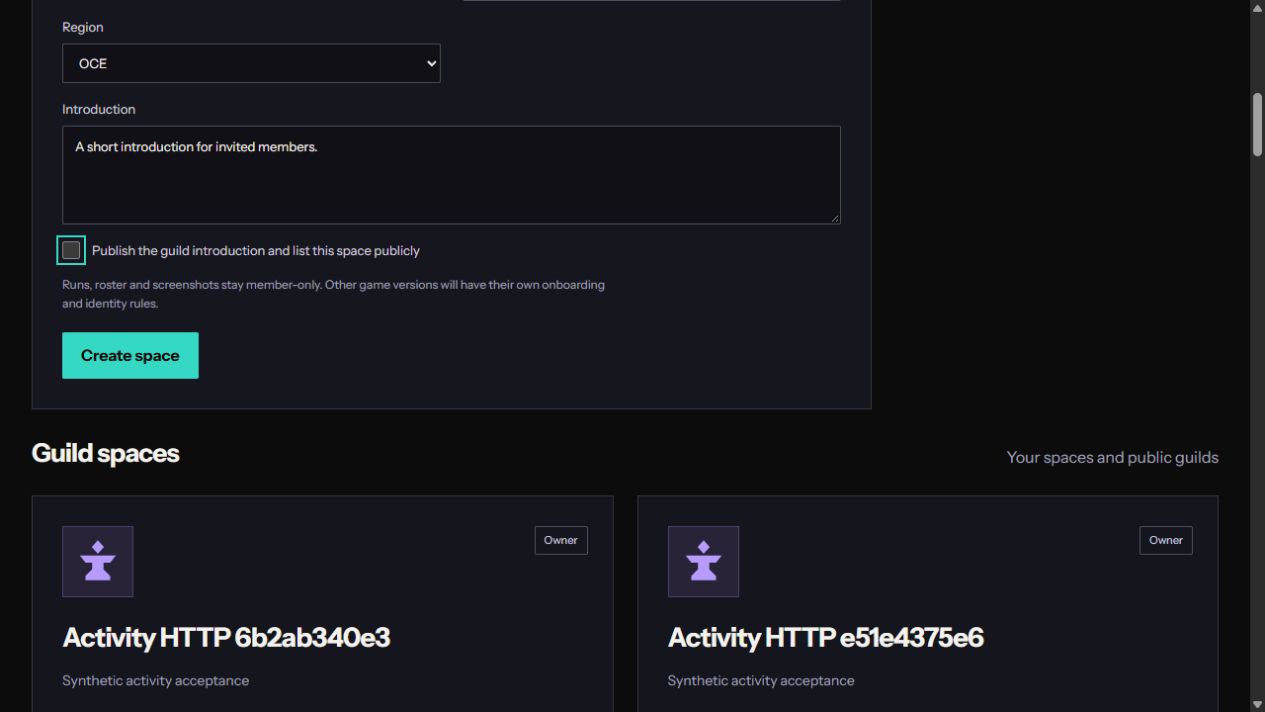
The URL slug is the short address label for this space: use lowercase letters, numbers and hyphens, such as rosewatch-pvp. You have completed this step when the guild name appears on Overview and Settings is available to you.
3. Prepare separate Discord text channels
Create an ordinary text channel for Check-In intake, for example #check-in, and a separate channel for trophy cards, for example #trophy-room. A leaderboard can use a third channel. The channel names are your choice. Guildology does not create these channels for you.
For intake, edit the channel’s permissions: explicitly deny View Channel to @everyone, then allow your approved member role and the Guildology bot to view it. Let members send messages and attach files there. Give the bot View Channel, Send Messages and Read Message History. Output channels also need Embed Links and Attach Files for cards. Pin Messages is optional and lets Guildology pin its onboarding reminder when permitted.
Repeat the @everyone View Channel deny for member-only output channels. Inspect category permissions, other role allows and individual overrides too: a guest role can still expose a channel despite that deny. Use a normal text channel rather than a forum, voice channel or thread for this setup.
4. Add the bot
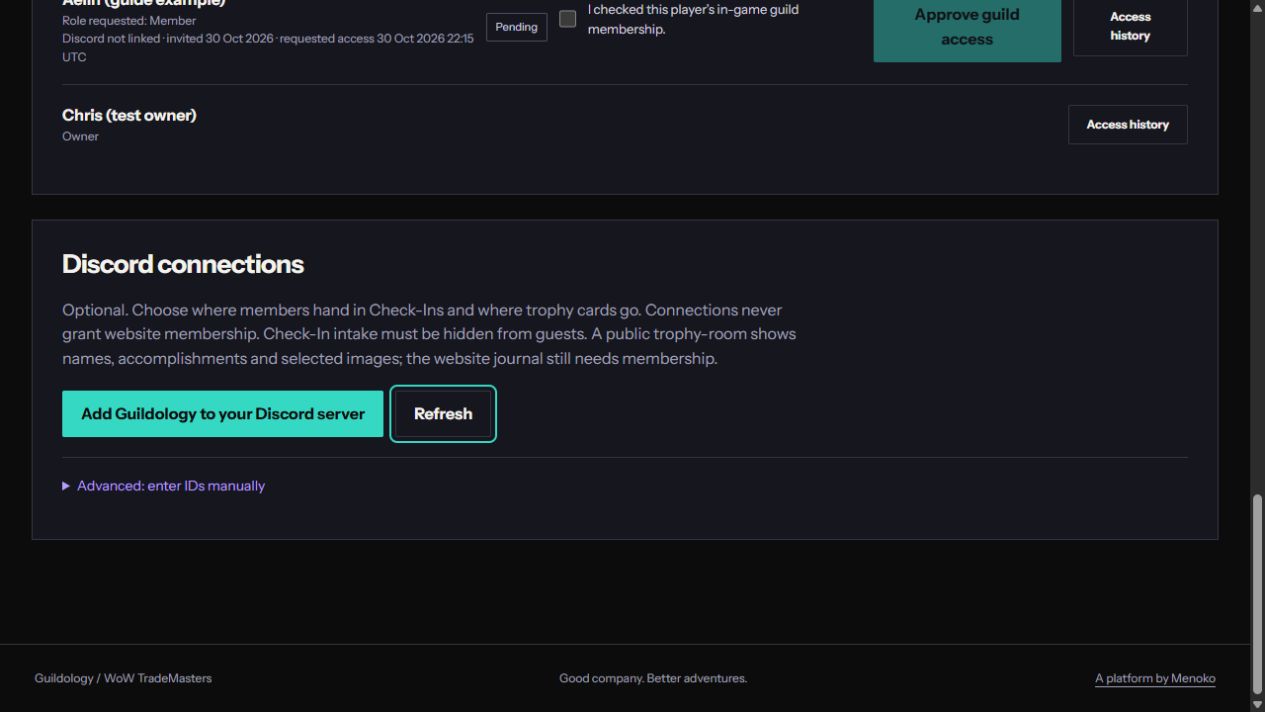
In your guild space, open Settings, find Discord connections and select Add Guildology to your Discord server. In Discord’s authorization screen, choose the intended server and review the requested permissions, then authorize. You should return to the same guild’s Settings.
The website requests View Channel, Send Messages, Read Message History, Embed Links, Attach Files and Pin Messages. Give these only where Guildology needs them. If the Add button is unavailable, ask the Guildology operator to configure installation; Advanced: enter IDs manually is a fallback for an admin who already knows the server and channel IDs, not a replacement for installing the bot.
5. Select channels and pair them
Choose your Discord server. If it or a newly created channel is missing, use Refresh after a short wait and check the bot can see it. Select Where should members hand in Check-Ins?, Where should trophy cards go? and, optionally, Leaderboard channel. Use a different channel for each purpose. Leave an unused purpose at Not now.
Choose whether Public trophy-room is appropriate. When enabled, names, accomplishments and selected screenshots on cards are visible to everyone who can read that channel. This does not publish the website journal. Keep intake member-only in all cases.
Select Connect. Copy the displayed /guildology-connect code:… command and run it through Discord’s slash-command picker in any text channel of that server, within 15 minutes, as a person with Manage Server. Keep the pairing code private. Installation alone does not complete pairing.
Read the private reply for each selected channel. A refused channel does not block the successful ones. Fix its permissions and retry the same command before expiry; after expiry, generate another pairing. Guildology posts a New here? reminder in intake and attempts to pin it. Missing Pin Messages permission does not prevent hand-ins; you can pin the reminder yourself.
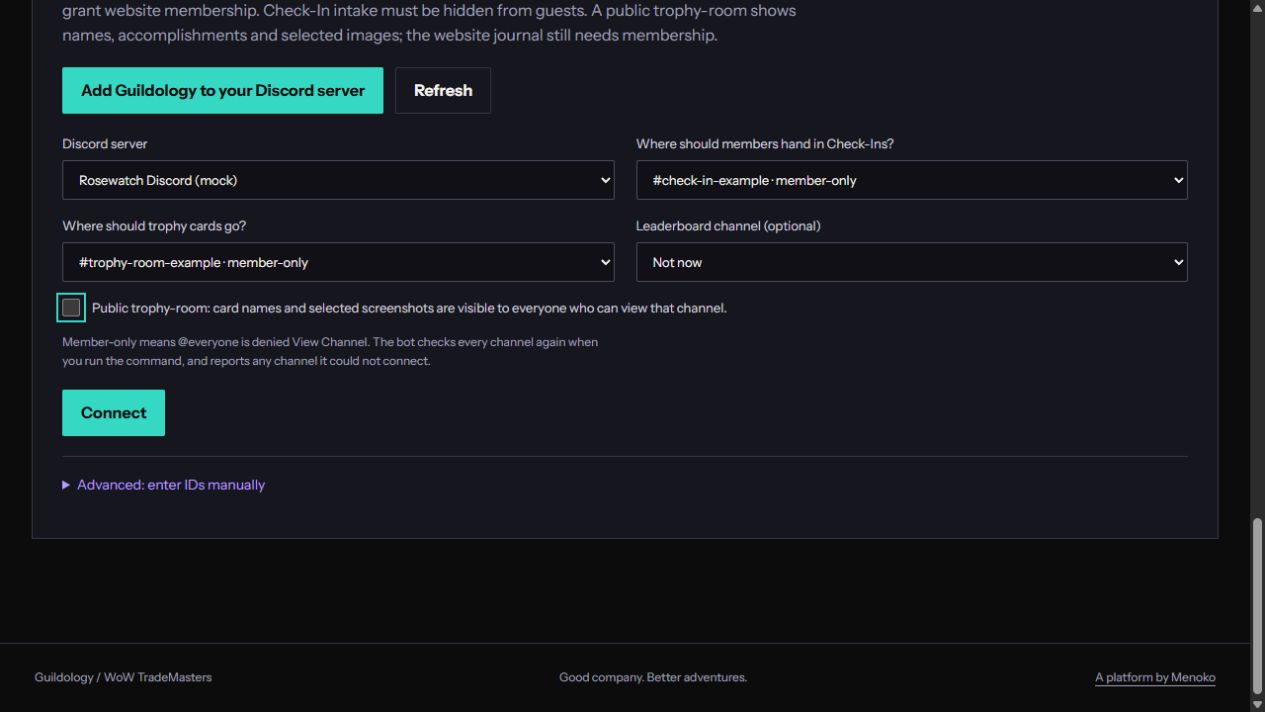
You are connected only after the Discord command reports Connected for each intended channel and website Settings shows Connected after Refresh. Awaiting pairing or Pairing expired means the final Discord step is still unfinished. The screenshot shows selections before Connect; it does not show a completed pairing.
6. Check the audience and connection
Run /guildology-status for connection purposes and recent delivery information. Run /guildology-audit in each destination; optionally select your expected member-role. Review guest-role access and individual overrides it reports. These commands require Manage Server and reply privately.
In website Settings, check each connection’s state, channel permissions, last delivery and delivery problems. Snapshots can lag behind Discord changes; Enabled is not proof that every later delivery succeeded. A quiet baseline produces no milestone cards, so test with a legitimate new update rather than manufacturing progress.
For the first member test, ask an approved player with a linked character and Discord account to submit a character Check-In. They should get a receipt and see the entry in website Activity Journal. A first baseline can correctly show zero trophy cards. If a regular member cannot view or post in intake, repair their Discord member-role permissions separately from website approval.
7. Invite people and approve their characters
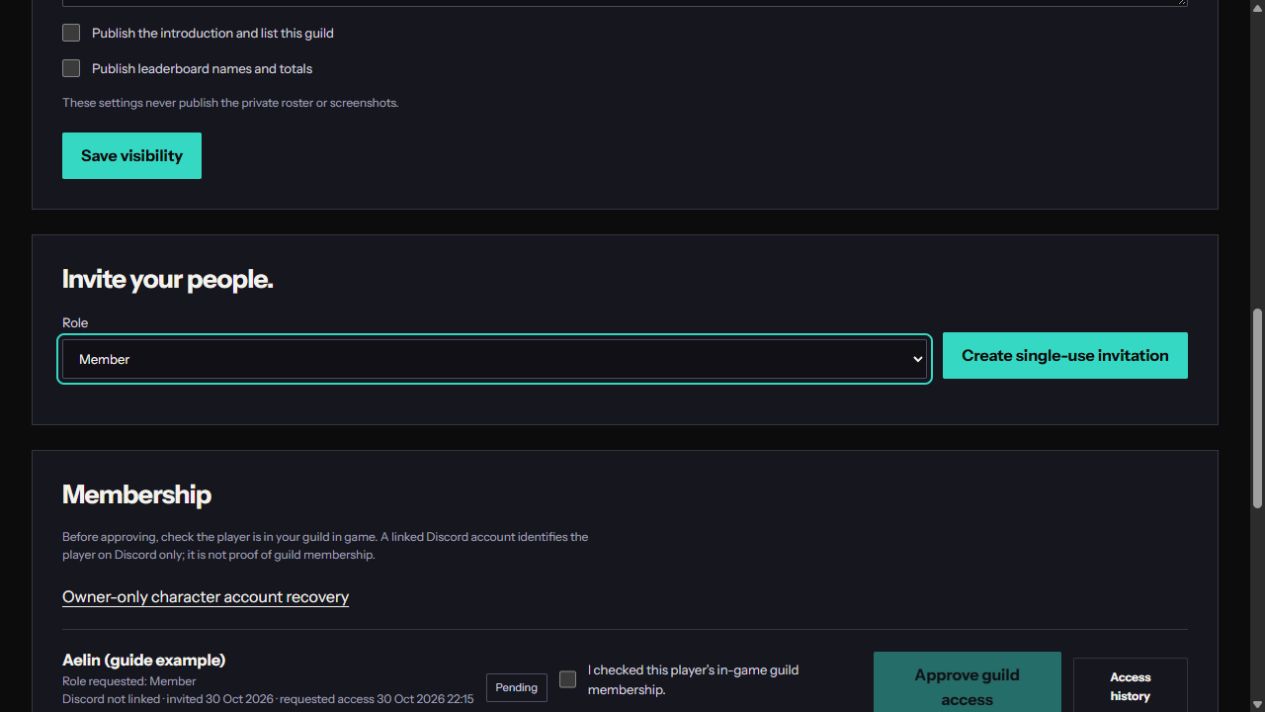
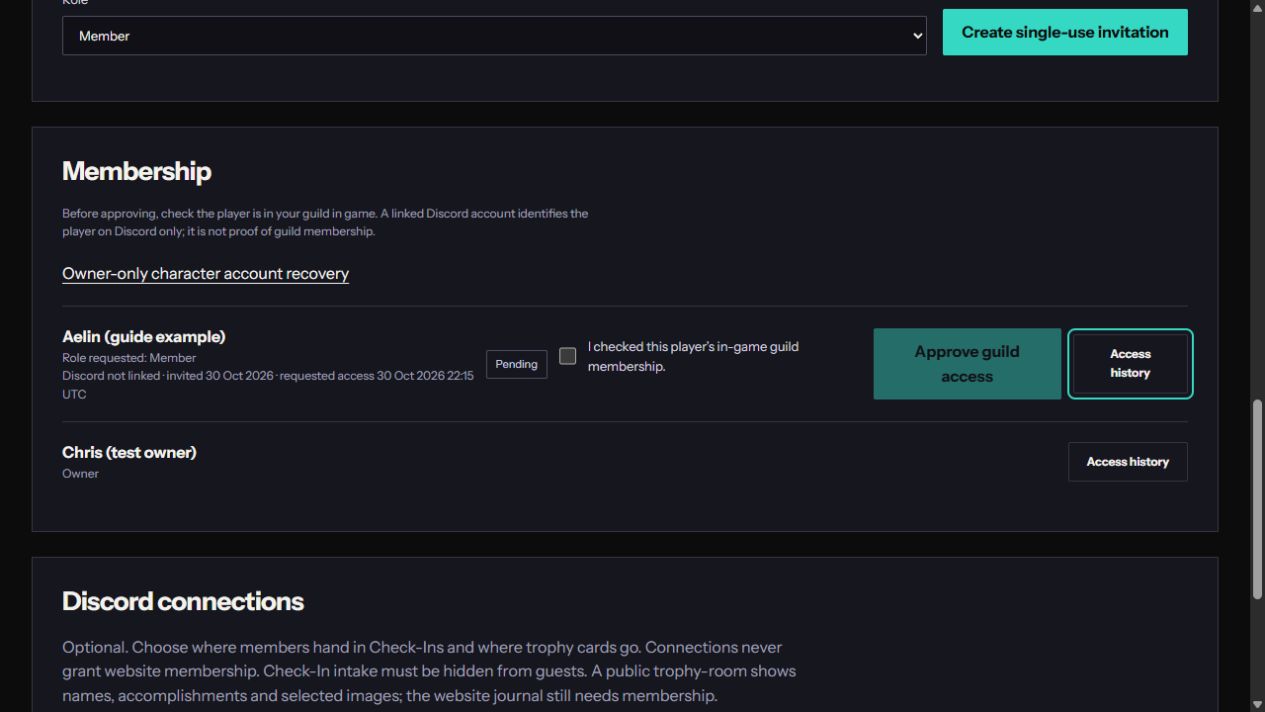
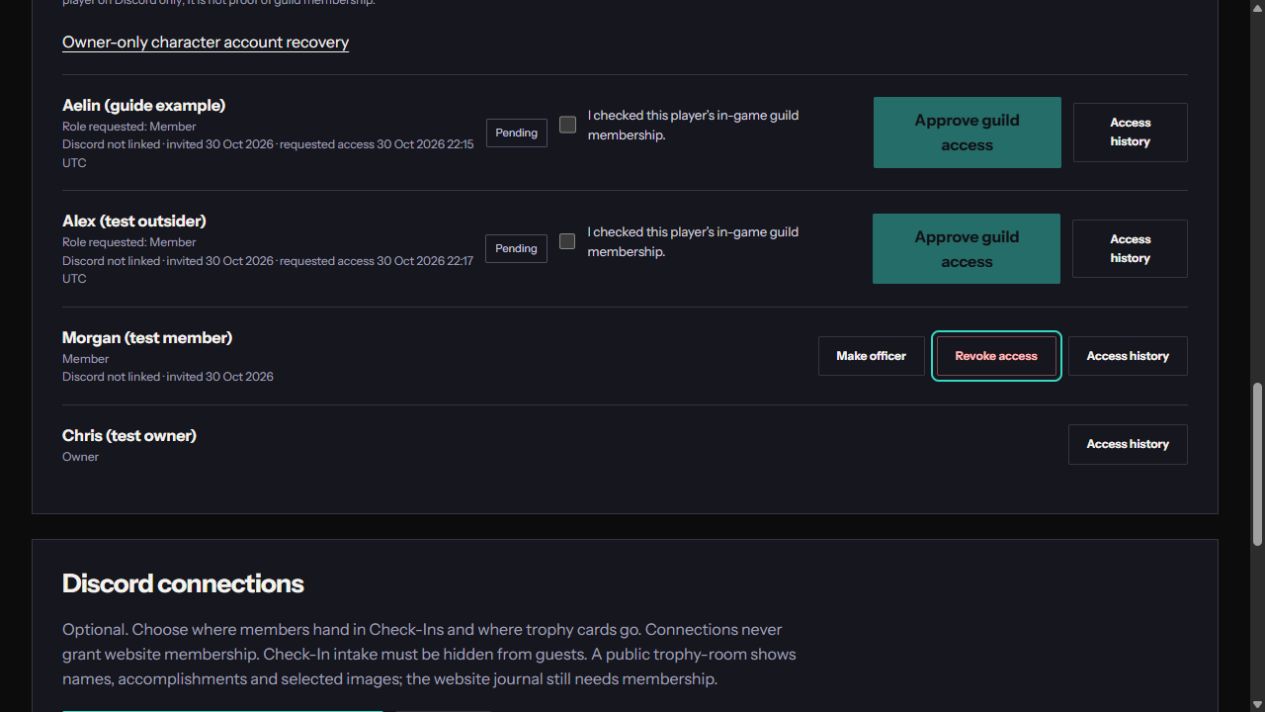
In Settings, choose Member or Officer, select Create single-use invitation and send the private link directly to its intended player. Each invitation lasts three days and can be accepted once. Under Membership, check the applicant’s in-game guild membership, tick the confirmation and select Approve guild access. Players cannot use private tools while approval is pending.
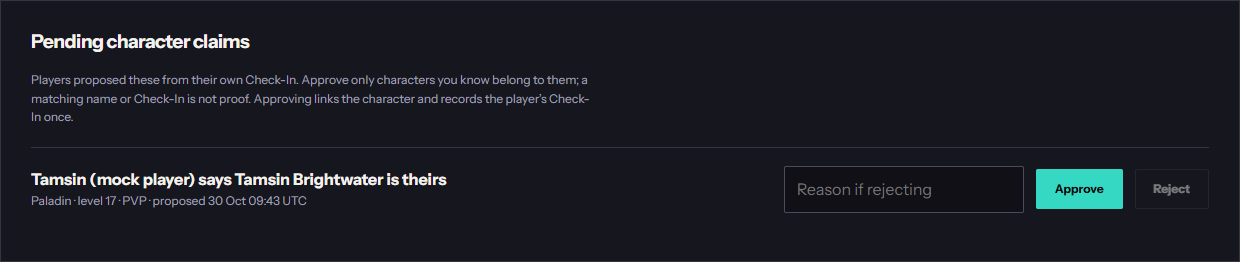
In Roster, review Pending character claims. Approve only characters you know belong to that player, or provide a reason and Reject. Approval links the character and applies the held Check-In together. Owners and officers can also Add a roster character and Confirm player link manually. Use the complete in-game name and the correct ruleset.
8. Manage visibility and membership
Settings lets the owner edit the introduction, publish the guild listing and separately publish leaderboard names and totals. Public leaderboard output in Discord also needs its connection’s Public leaderboard choice. Private roster access is not granted by either setting.
Use Make officer, Make member or Revoke access to manage approved members. Review Access history for a membership’s changes. Character account recovery is owner-only: verify the replacement player first, select the linked character and an approved replacement account, provide the recovery reason and confirmation. It preserves the character’s guild history and changes who controls future Check-Ins.
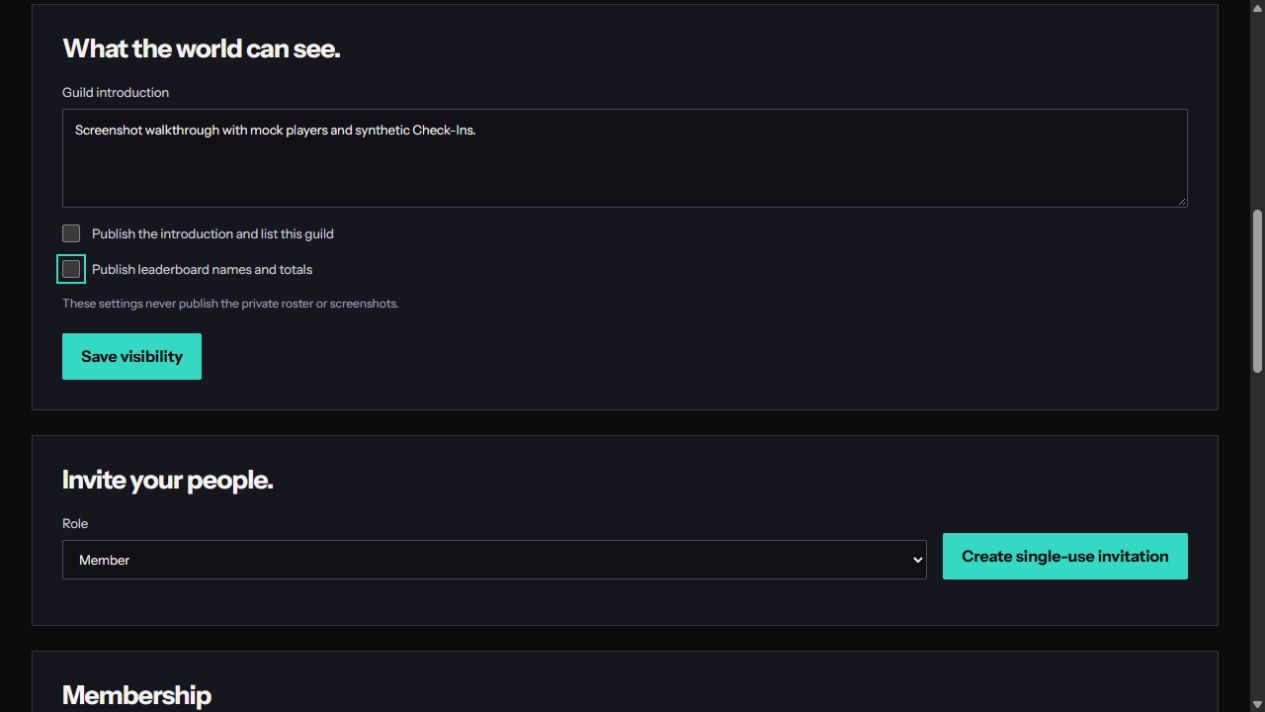
To publish leaderboard totals into a public Discord channel, enable both Publish the introduction and list this guild and Publish leaderboard names and totals on the website, then enable Public leaderboard on that specific connection. The worker requires a public guild introduction as well as the published board before posting totals publicly. Decide whether that public listing suits your guild before enabling it. An officer may review characters and runs, but only the website owner manages membership and server connections.
9. Reconnect, move channels or stop using Discord
Use Disable / cancel on the old binding before replacing a connection. To move a purpose, disable its old channel and connect the replacement so you do not leave two enabled destinations. Re-pair after repairing permissions; reconnecting already enabled choices does not update their audience settings, so use the audience control on the existing connection.
A deleted channel, removal of the bot or a posting permission failure can pause a connection and notify owners. Fix the cause, then reconnect. If private delivery stops after a channel became visible to @everyone, restore the deny and audit guest roles even if the connection still appears enabled. If members’ messages are ignored despite a connected, private intake channel, ask the Guildology operator whether message intake is enabled.
To stop delivery, disable the website connections; remove the bot through Discord’s server controls if you no longer want it installed. The website journal continues to work. Disabling a connection or removing the bot does not delete earlier Discord posts or original member uploads.
10. Help members resolve common blockers
Ask a member to open My account and check membership, character and Discord status separately. A pending membership needs the owner; a pending character proposal needs an owner or officer. The first proposal happens through website Check In. /guildology-start provides a private starting point, but installation or Discord linking never approves membership.
If commands are missing, check the correct server and bot installation and ask the operator to inspect command registration. If cards fail, check Embed Links and Attach Files as well as channel access. Before widening access to solve an error, read the channel audit and the precise connection problem.
11. Choose public stories and recruitment
In your guild space, open Settings. Under What the world can see, enable Publish the introduction and list this guild and select Save visibility if you want it to be discoverable. Include an in-game contact or Discord invitation in the introduction so potential members know how to reach you.
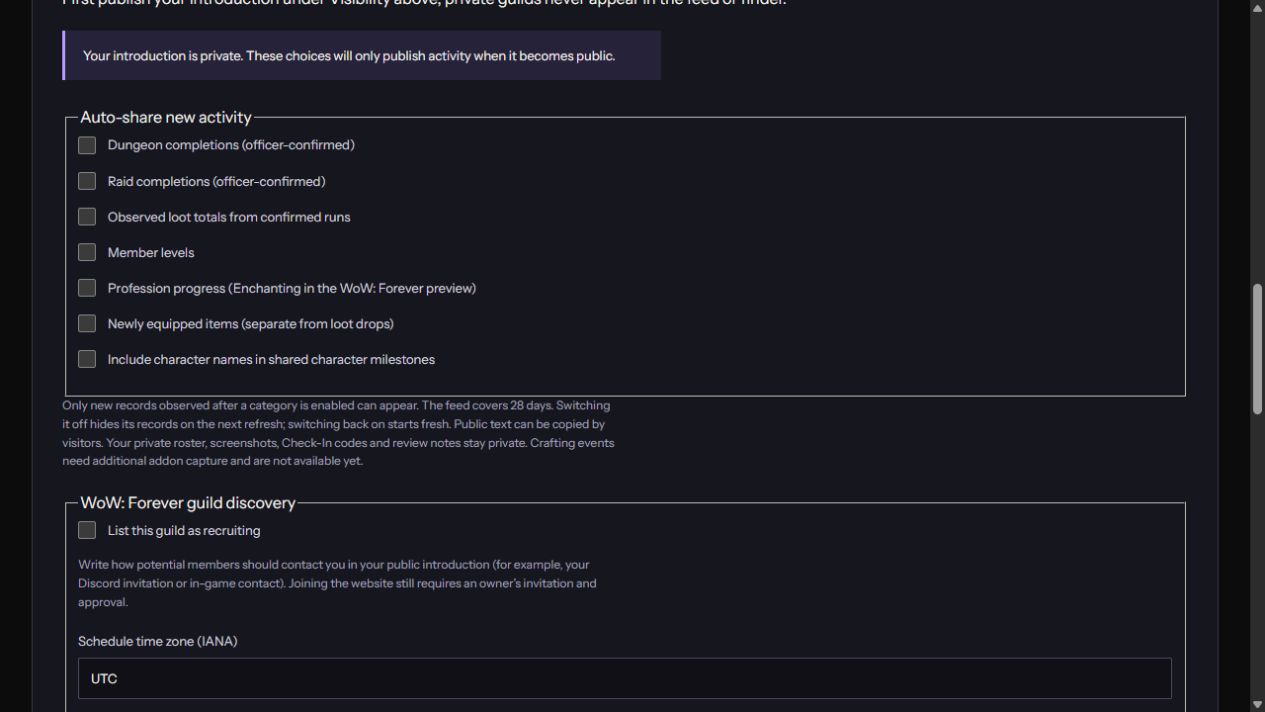
Scroll to Share your guild’s story. Every public-sharing choice starts off. Choose the new activity categories you want to auto-share: Dungeon completions, Raid completions, Observed loot totals, Member levels, Enchanting progress or Newly equipped items. Completions require officer confirmation. Enchanting progress is not crafted-item capture; equipped items are separate from recorded loot drops.
Choose Include character names if your guild wants names on public character milestones. The guild controls this choice; members can see the policy in Overview. The public stream never includes the private roster, Check-In/share codes, review notes or screenshots. Image publication remains a separate permission process.
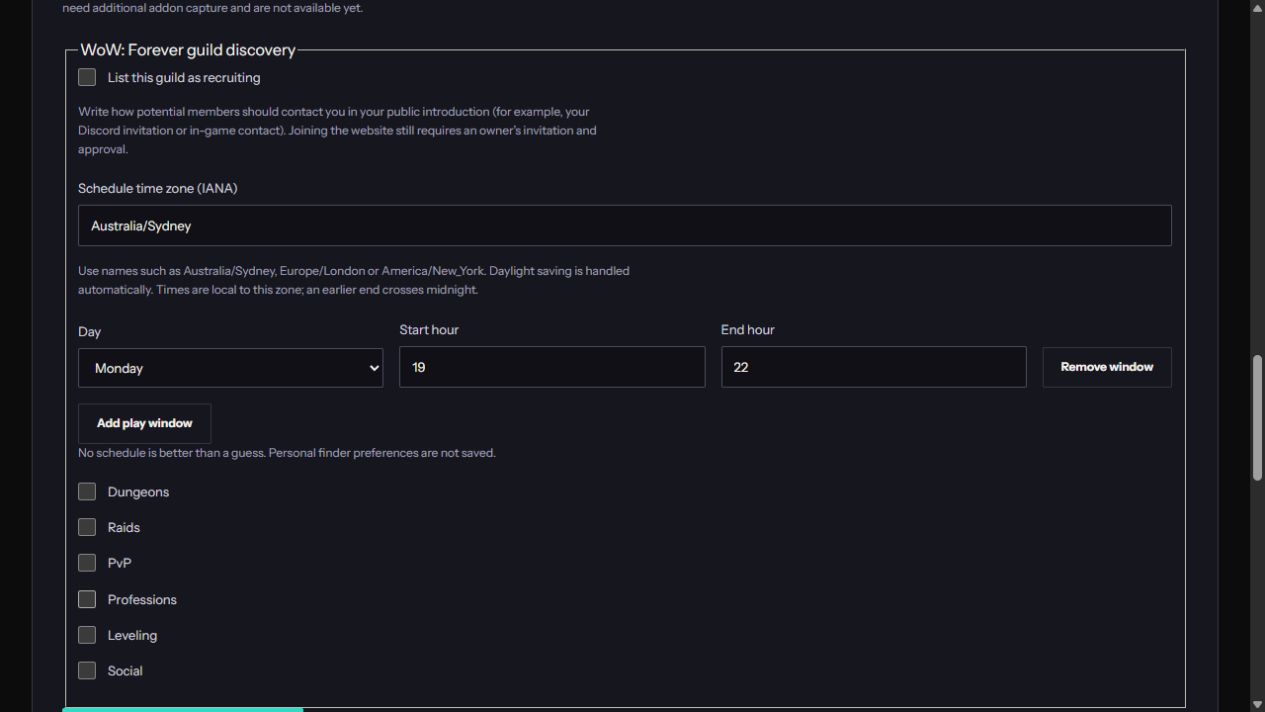
Under WoW: Forever guild discovery, choose List this guild as recruiting. Enter the guild schedule time zone, such as Australia/Sydney. Add a day, start hour and end hour for each usual play window. Use 24-hour local time; an earlier end crosses midnight. Select the guild’s interests, then Save sharing and discovery. Listing the introduction alone does not mark the guild as recruiting.
Open Find a WoW: Forever guild from the home page to check the listing. It compares declared times and interests, with limited public activity as supporting evidence. No Check-Ins does not mean the guild is inactive. Visitors contact you using the introduction; they still need a private invitation and your membership approval to enter the website space.
Only newly observed records after a category is enabled can appear, and the public feed covers 28 days. To stop a category, clear its switch and save. It disappears on subsequent public refreshes. Turning it on again starts a fresh window. Making the introduction private hides both the feed and recruitment listing. Public text already seen or copied by a visitor cannot be recalled.
Bring the story back to your people.
Open your guild space to catch up on the journal or make your next Check-In.
Open guild spaces