

Website screenshots use the Modern theme. Paper is the default; choose Paper, Night or Modern in My account under Make the journal yours. Buttons and steps are the same in every theme.
Version scope: the working Warcraft integration described here is WoW: Forever. WoW: Midnight is a separate planned integration; these addon instructions do not apply to Retail, Classic or another expansion.
You can join an existing guild space without creating a new one. To read the private guild journal, you need your guild owner’s private invitation link, a Guildology account and membership approval. An approved character is needed to submit your own character or participating run Check-Ins, not to begin reading the journal. Discord is optional for the website journal. Account creation, guild approval, character approval and Discord linking are separate steps.
Screenshots show the actual Guildology website with test identities and mock game or server data. Select an image to open it at full size. In-game addon and Discord authorization screens are described in the text; they are not recreated as website screenshots.
1. Open your private invitation
Ask your guild-space owner for a fresh invitation link and open it in your browser. Invitations are single-use and last three days. Keep the original link private. If you only have a bare invitation token, the Guild spaces page has a token field when you are signed in; the complete link is easier.
If you are signed out, open Create an account or sign in, then choose Continue with Microsoft, Sign in with Google, or Continue with Discord. Complete the provider's sign-in or account selection and return to the same browser tab so your invitation can continue. Existing email-code accounts can use Use an existing email-code account. If the handoff expires, reopen the original invitation; you do not need another guild space. A provider account confirms your identity, not your in-game guild membership.
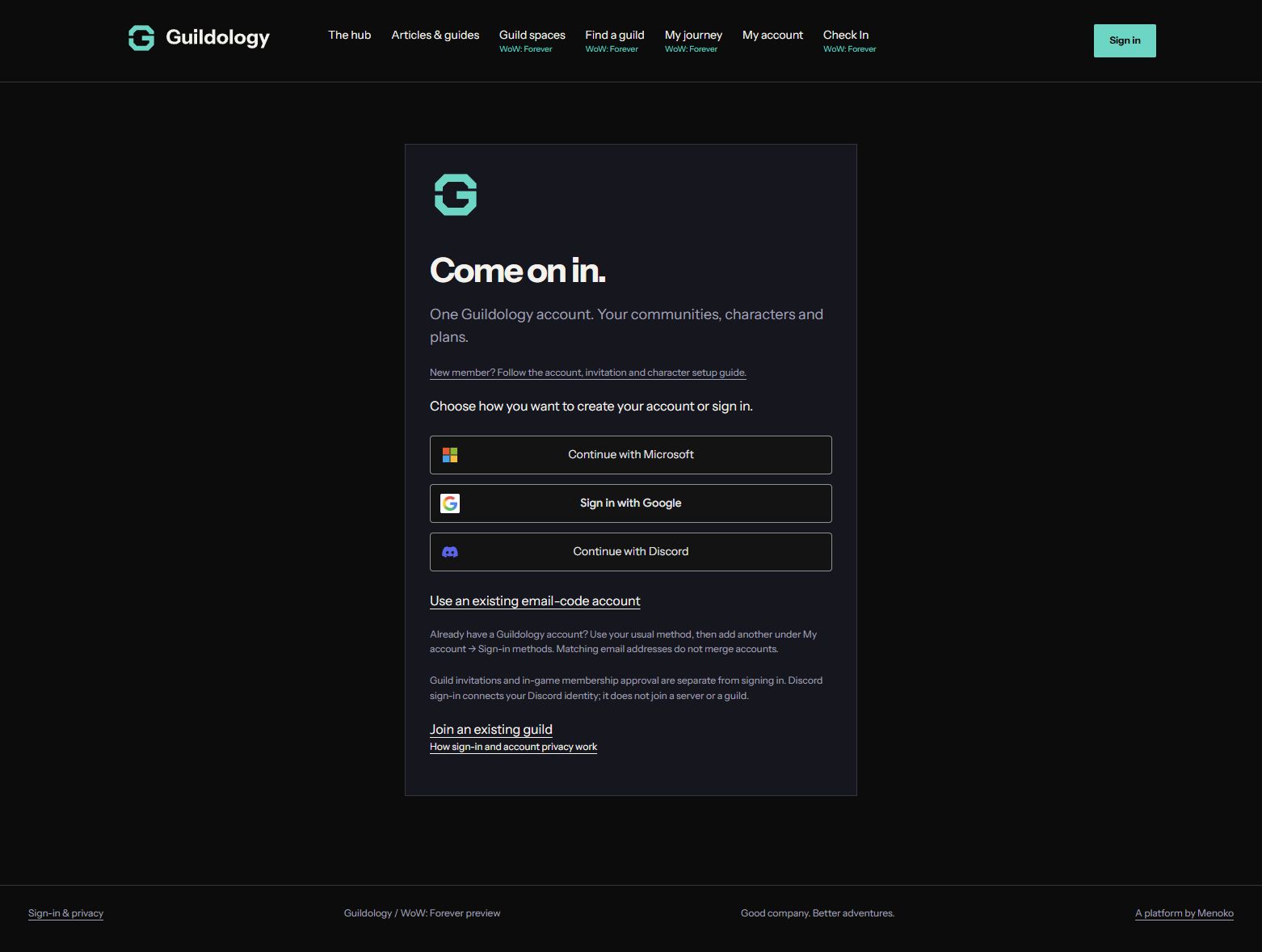
Keep the same account when adding another sign-in
Already have guilds, characters or a private journey? Sign in with your usual method first. Open My account, find Sign-in methods, and select Add Microsoft sign-in, Add Google sign-in or Add Discord sign-in. Confirm the provider account you want to use. Future sign-ins through that connected provider open this same Guildology profile. Matching email addresses do not merge accounts. A method already owned by another Guildology profile cannot be moved through this flow.
To remove a method, keep another available sign-in connected, select Remove beside the method, and confirm. Sessions using the removed method are signed out on their next request. Removing Discord sign-in keeps the bot connection; disconnecting Discord bot features keeps the sign-in method. Discord sign-in connects the verified Discord identity but never joins a server, grants guild membership or approves a character.
2. Check the invitation before accepting
Review the guild name, WoW game version, ruleset, region, intended role and expiry. If these are correct, select Accept invitation and await approval. If they are wrong, discard the invitation and contact the owner. Acceptance requests access; it does not yet let you read the private roster or journal.
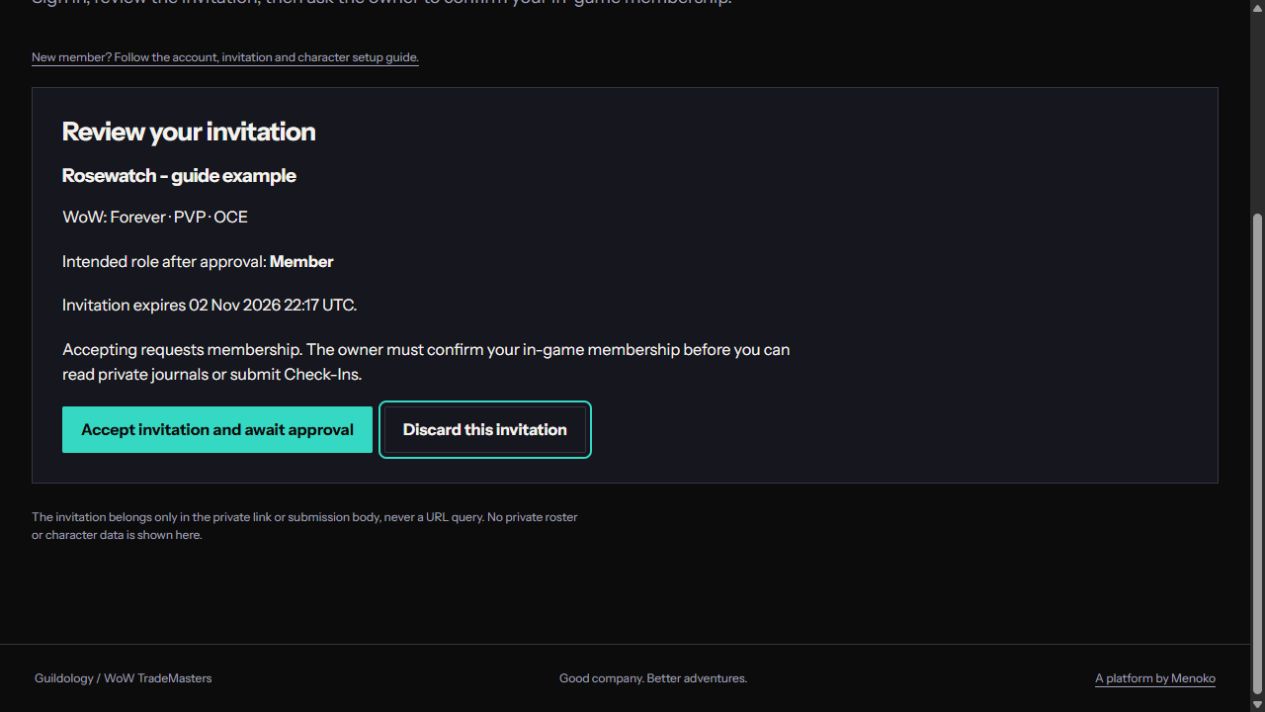
3. Wait for the owner to approve membership
Open My account. Your onboarding steps and Your guild memberships show Pending owner approval and, where available, the owner’s name. The owner must check you belong to the in-game guild and approve your website access. Signing in again or linking Discord will not skip this check.
Use Refresh account or Check again after the owner has acted. Approval appears in Notifications. Active membership unlocks the guild space; revoked access needs the owner’s help. If an invitation says it was already used or expired, ask the owner whether you already have a membership request before requesting a replacement.
Your success check is Active beside this particular guild under Your guild memberships. You can now Open guild space to read its journal and roster, even if your character is not linked yet. If you belong to other spaces, a completed overall checklist does not mean the new guild has approved you: check this guild’s own membership row.
4. Install the preview addon and set the ruleset
Choose Get addon 0.2.3-preview from My account. Extract the Guildology folder into your client’s Interface/AddOns folder, with Guildology.toc directly inside it, then enable the addon. Open it with /guildology. Set /guildology ruleset followed by the ruleset shown on your guild space; for a PVP guild, use /guildology ruleset PVP.
This is the current Forever preview. Real-client API capture, addon rendering and copying still need verification in the actual Forever client. If a client feature fails, use Diagnostics or /guildology diagnostics, copy its report before reloading, and share it with your guild’s tester after reviewing its contents.
Before continuing, check that /guildology opens the addon window and that your ruleset matches the website guild heading. If you only want to read the journal or contribute run screenshots, you can return to the addon and character steps later.
5. Propose your character on the website
Create a character Check-In with Get Check-In code or /guildology checkin and copy it. Open website Check In, paste the full code and select Check destination. If no approved character matches, select the intended guild under Propose this character to, tick This is my character and choose Propose character.
An owner or officer reviews the proposal in Roster. My account → Your linked characters also shows proposal status and a rejection reason if provided. Approval links the character and records the held first Check-In together, so you do not need to paste it again. A first baseline normally produces no trophy cards.
If the character is already linked to you, Check In offers a destination instead: check the character and guild, tick the confirmation and select Confirm Check-In. If the character is linked to someone else, ask the owner to investigate account recovery. A matching name or exported GUID does not prove who owns a character.
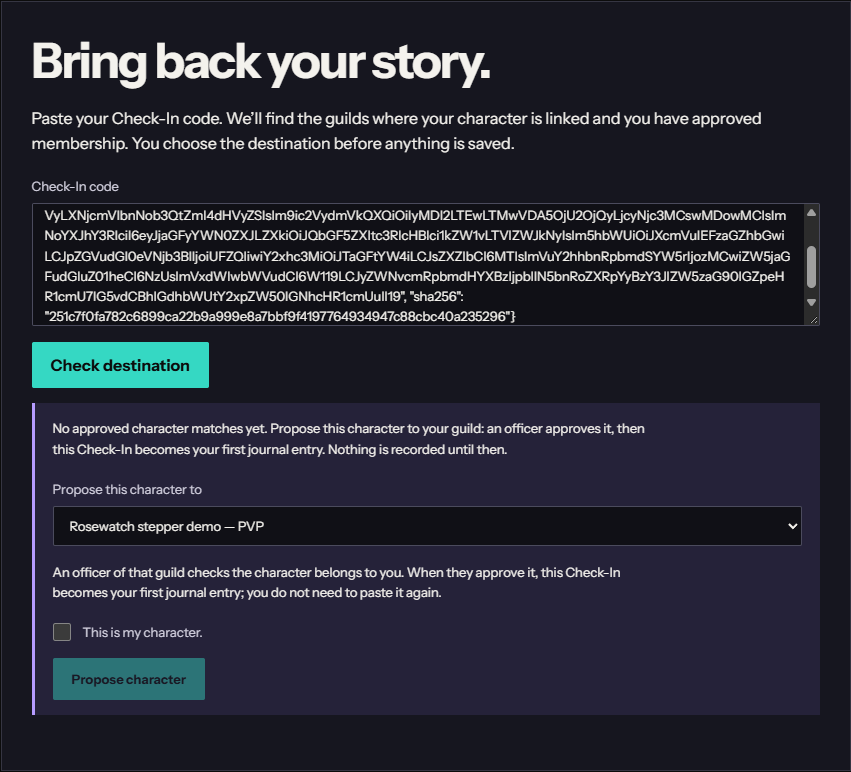
The proposal screenshot shows This is my character before it is ticked, so Propose character is disabled. Tick it to enable the action. When approved, look for your character under Your linked characters and its first Check-In date. If it remains Pending, an owner or officer still needs to act; pasting the code again does not bypass approval.
6. Connect your own Discord account, if wanted
If you signed in with Discord and My account already shows Discord account linked for the correct account, this step is complete. Otherwise, under My account → Discord connection — optional, choose Connect Discord, authorize the correct Discord account and check for Discord account linked when you return. This enables identification for your server’s hand-ins. The server must also be connected by its admin; your personal link does not install or configure the bot.
If you use Linking from Discord instead?, create a one-use code and run /guildology-account code:… through Discord’s slash-command picker in a server with the bot, or in a DM to the bot. It expires after 15 minutes; generating another replaces it. Keep it private. Use Check connection after Discord confirms it.
If you linked the wrong Discord account, choose Disconnect Discord on the website, then connect the intended one. An account already linked to another Guildology account must be disconnected there first. Website memberships do not move when you disconnect Discord.
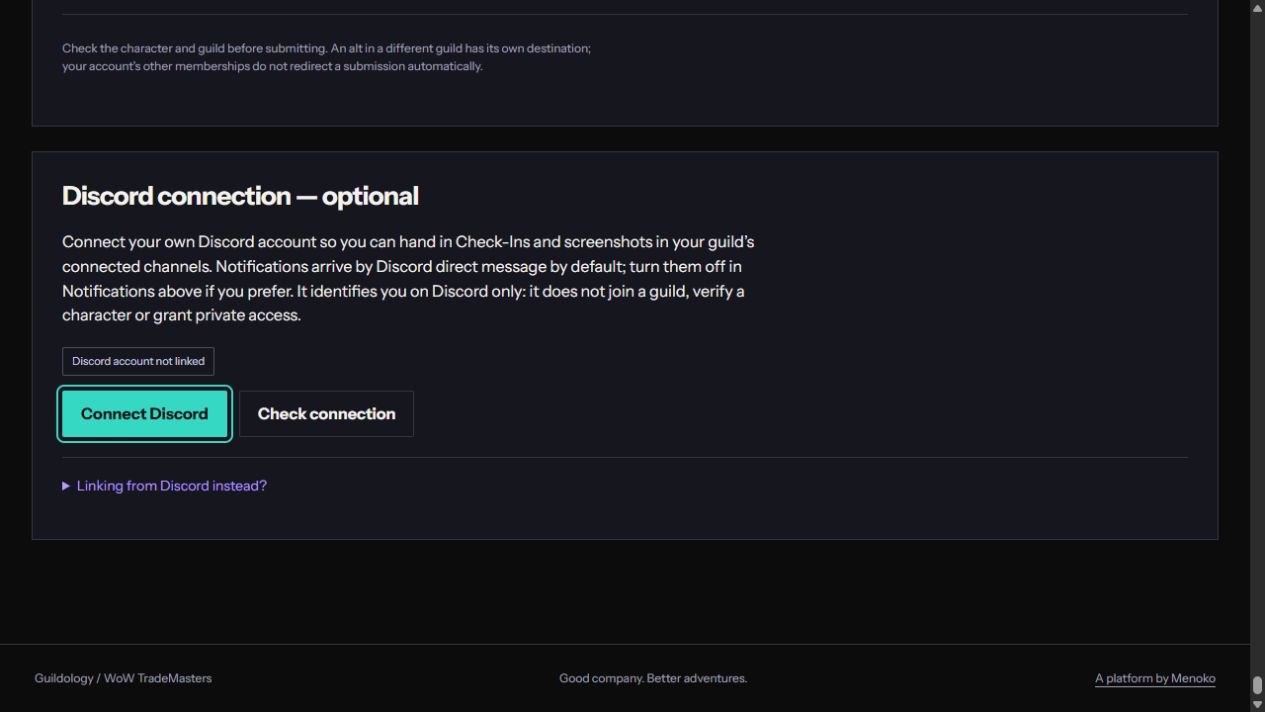
You have finished the Discord connection when Discord account linked is shown after returning or selecting Check connection. You do not need to run the private link-code command as well when Connect Discord already succeeded. Receiving an invitation, seeing the bot in the server and linking your own Discord are three different things.
7. Make the account yours and start playing
Set your display name in My account → Your profile and select Save name. It is the name other members see, including on the player participation board. Review Notifications for approvals and character decisions. Discord notification DMs are on by default when linked; you can switch them off without losing website notifications.
For your next Check-In, generate a fresh code and choose the destination explicitly. Alts can have different guild destinations; membership in one space does not authorize another. Your website journal works without Discord. Continue with the Discord member guide or the Forever website guide below.
Looking for a guild before joining?
Browse Find a WoW: Forever guild without an account. Enter your usual play times, time zone and interests, then compare recruiting guilds. A result combines the guild’s declared schedule with its recent publicly shared activity; it does not monitor members’ online status. Meet a guild through the contact instructions in its public introduction. Once you have joined in game, ask the owner for the private Guildology invitation and follow the membership steps above. Browsing or linking Discord does not approve membership.
Prefer to play solo?
You can also keep a private character journal without guild membership. Open My private WoW: Forever journey after signing in, or follow the personal journey guide. Save character Check-Ins, set level/Enchanting goals and inspect your equipped items. The guild invitation and officer steps in this article apply when you choose shared guild tools.
Bring the story back to your people.
Open your guild space to catch up on the journal or make your next Check-In.
Open guild spaces