

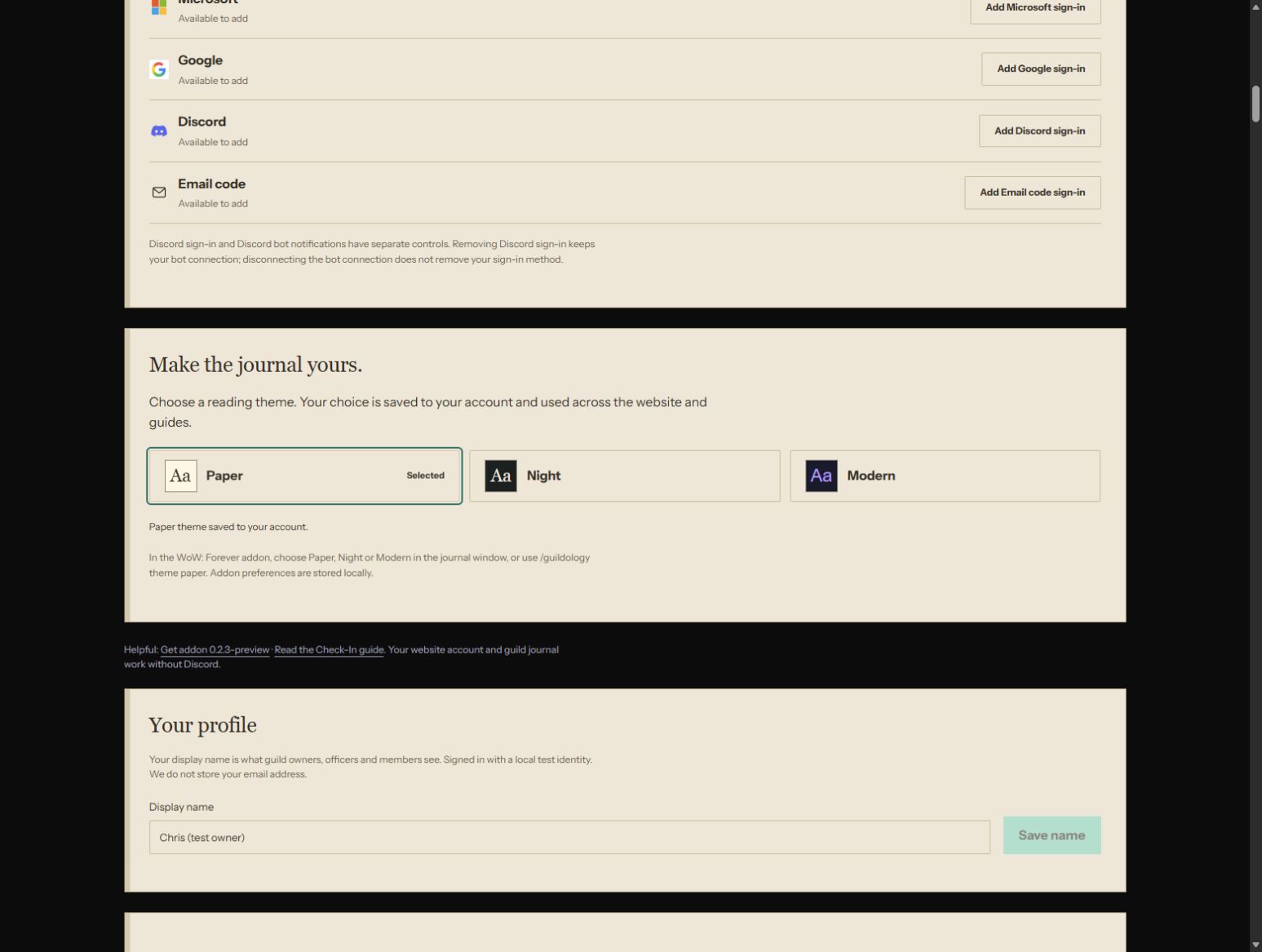
Earlier walkthrough screenshots use the Modern theme; the theme-settings screenshot shows Paper. Paper is the default; choose Paper, Night or Modern in My account under Make the journal yours. Buttons and steps are the same in every theme.
Version scope: this personal companion is for WoW: Forever. It is not a WoW: Midnight, Retail or Classic integration. Real-client capture still needs the pilot validation described in the addon guide. Screenshots show the actual local website with explicitly labelled test data.
1. Start with your own account
Open My private WoW: Forever journey. If you are signed out, select Create an account or sign in, then choose Microsoft, Google or Discord. Existing email-code accounts retain their own sign-in route. Use your existing method and add another from My account if you already have a Guildology profile; matching email addresses do not merge accounts. After signing in, you return to My journey. You do not need to create or join a guild, wait for an officer, or connect Discord. My account also has a Start my private WoW: Forever journey button; the guild setup steps below that choice are only for shared guild tools.
2. Get a character Check-In from the addon
Install the WoW: Forever addon preview. Set your exact ruleset, for example /guildology ruleset PVP. Out of combat, select Get Check-In code or use /guildology checkin, then copy the complete character code with Ctrl+C. Use a character code for this personal journal; dungeon and raid runs still belong in an approved guild destination. The addon does not upload anything automatically.
3. Check the private destination before saving
Paste the code into Character Check-In code on My journey and select Preview private Check-In. Check the character name, WoW: Forever ruleset, level, Enchanting rank and observation time. The destination must say your private journey only. Tick Save this character Check-In to my private journey, then select Save private Check-In. A marked fixture stays labelled as test evidence.
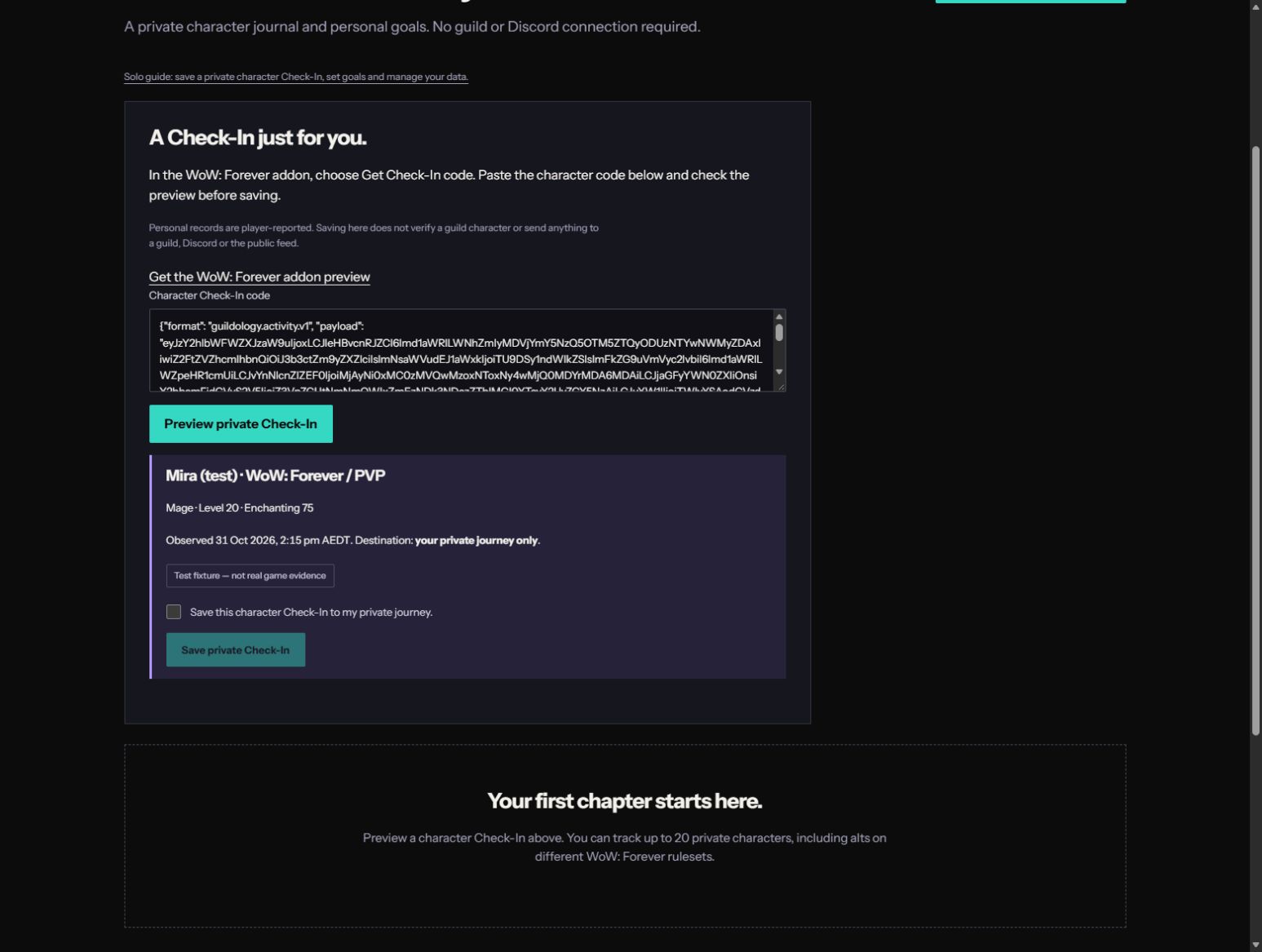
Your first Check-In establishes a baseline. Later snapshots record changes in level, Enchanting and equipped items. Reusing the same code does not add another entry; an older code cannot overwrite a newer record. Up to 20 personal characters are supported. Personal character data does not verify guild ownership, create membership, request an officer claim, publish a public story or queue a Discord trophy.
4. Set a goal for your next sessions
Choose a character under Private character. In The next chapter is yours, enter a Target level, a Target Enchanting rank, or both, then select Save personal goals. Leave a field blank and save to clear that target. The page shows the latest captured value, remaining progress, or Target reached. If Enchanting was not recorded, it says so instead of inventing a rank. Choose a target within the cap reported by your client.
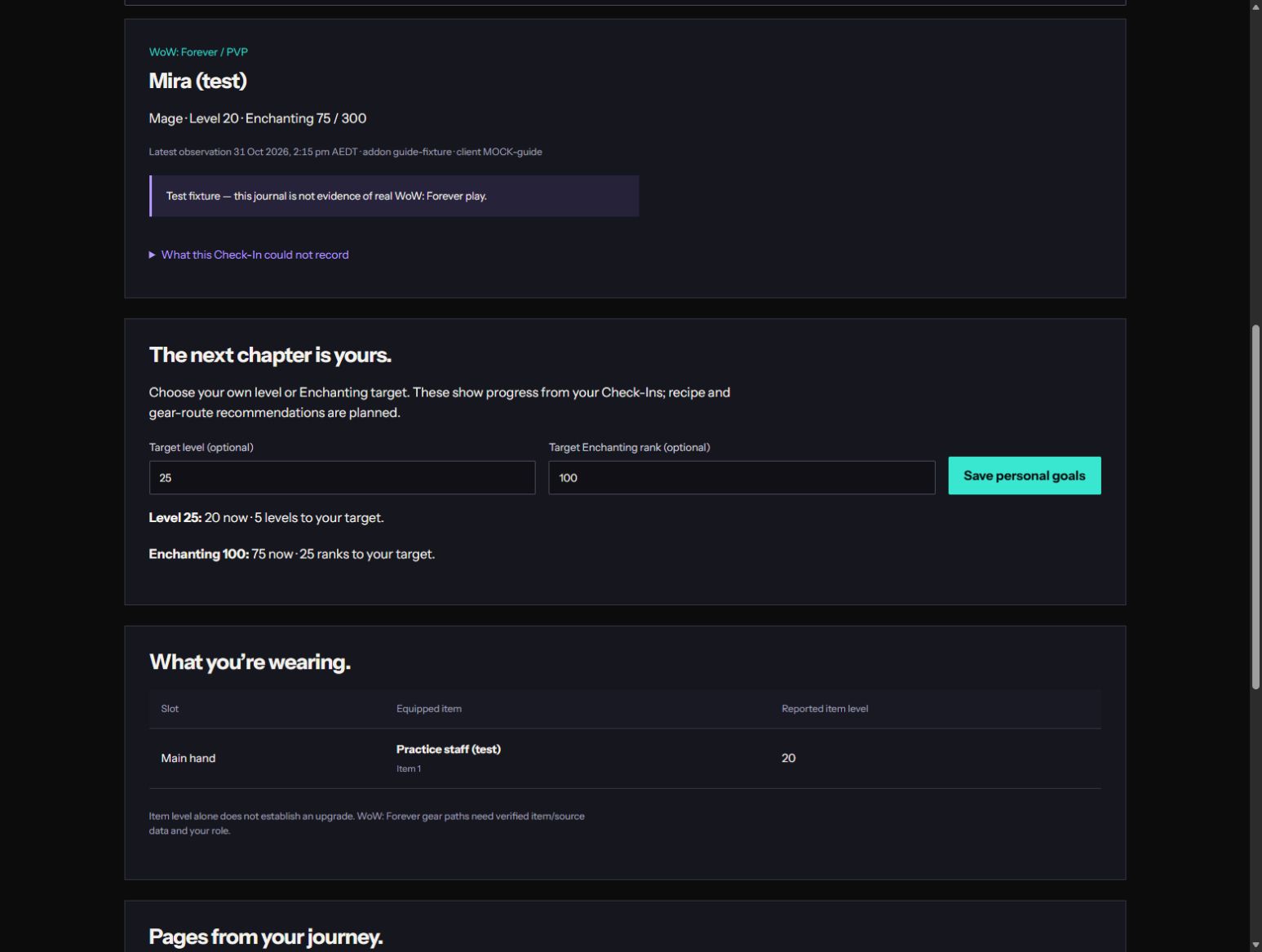
These are progress targets, not recipe routes. Verified WoW: Forever recipes, materials, skill-up rules, known recipes and inventory are still needed before Guildology can recommend a crafting plan. Gear acquisition recommendations likewise need verified item/source data and your role. Item level alone is not an upgrade recommendation.
5. Catch up with your own character
The character summary shows the ruleset, class, latest observation, addon/client versions and recording gaps. What you’re wearing lists the latest captured slots, item names and reported item levels. Unknown or unavailable equipment is described explicitly. Pages from your journey shows your latest 50 personal Check-Ins; this history does not establish hours online or guild participation. Make a fresh character Check-In after your next session to update it. After seven days without an upload for the selected character, a catch-up prompt shows when its last Check-In arrived. The current preview compares snapshots; it cannot yet recover a detailed history of everything played between them.
6. Download or remove your personal data
Open Your personal data. Select Download personal data for a JSON file containing the latest character snapshot, goals and recorded change history. This data file is not a guild Check-In code and is not an automatic restore/import feature.
To remove this character’s personal journal, type its full name in the confirmation field, then select Remove personal character. This removes its personal goals and receipts as well. Check-Ins you separately submitted to a guild remain under that guild’s controls. You can explicitly start a new personal record later with another Check-In.
7. Find company when you want it
Select Find a WoW: Forever guild to compare declared schedules, interests and limited public activity. Your personal journal and goals are not used as a hidden public recruitment signal. If you choose to join a guild, follow its private invitation and character-verification process separately; use website Check In when you explicitly want to submit to the guild journal.
Choose your journal theme
Open My account → Make the journal yours. Select Paper, Night or Modern; the choice saves to your account and applies across the website and guides. Paper is the default. Your addon stores its own theme locally: choose a theme in its window or use /guildology theme paper, /guildology theme night or /guildology theme modern. Theme choices do not change who can read your records. The current personal preview remains private; the planned category-sharing controls are not active yet.
Your next chapter is yours.
Make a fresh character Check-In or choose a personal goal for your next session.
Open my private journey